
Free tool
Homelab IP & VLAN planner
Plan the networks for your lab in one go. Pick an address range and the VLANs you need, and you get the subnet, gateway, static range and DHCP pool for each one, ready to copy into your router.
Pick your address range
Start from a private range your ISP router and VPN don’t already use. The 10.x range gives you the most room.
Private ranges only
254 usable addresses each
10.0.40.x is VLAN 40
.254 works too
10.0.0.0/16 has room for 255 networks of 254 addresses each, one per third octet from 1 to 255, so you can add VLANs later without renumbering anything.
Choose your networks
Tap a network to add it. Change any VLAN ID or size in its row and everything below updates.
Switches, access points, hypervisor UIs
Subnet 10.0.10.0/24
Proxmox, NAS, Docker hosts
Subnet 10.0.20.0/24
Your laptops and phones
Subnet 10.0.30.0/24
Smart plugs, TVs, speakers
Subnet 10.0.40.0/24
Visitors, internet only
Subnet 10.0.50.0/24
PoE cameras, no internet
Subnet 10.0.60.0/24
Anything open to the internet
Subnet 10.0.70.0/24
Split each subnet
Static addresses for servers and network gear, DHCP for everything else. The same split is used for every network.
Room for 98 fixed devices
On a bigger network the pool runs to its own last address
Your Pi-hole or AdGuard Home
Your address plan
Every network in one table. Switch the view to get the same plan as Markdown or CSV.
| VLAN | Network | Subnet | Gateway | Static range | DHCP pool | Usable |
|---|---|---|---|---|---|---|
| 10 | Management | 10.0.10.0/24 | 10.0.10.1 | 10.0.10.2 – 10.0.10.99 | 10.0.10.100 – 10.0.10.254 | 254 |
| 20 | Servers | 10.0.20.0/24 | 10.0.20.1 | 10.0.20.2 – 10.0.20.99 | 10.0.20.100 – 10.0.20.254 | 254 |
| 30 | Trusted | 10.0.30.0/24 | 10.0.30.1 | 10.0.30.2 – 10.0.30.99 | 10.0.30.100 – 10.0.30.254 | 254 |
| 40 | IoT | 10.0.40.0/24 | 10.0.40.1 | 10.0.40.2 – 10.0.40.99 | 10.0.40.100 – 10.0.40.254 | 254 |
| 50 | Guest | 10.0.50.0/24 | 10.0.50.1 | 10.0.50.2 – 10.0.50.99 | 10.0.50.100 – 10.0.50.254 | 254 |
| 60 | Cameras | 10.0.60.0/24 | 10.0.60.1 | 10.0.60.2 – 10.0.60.99 | 10.0.60.100 – 10.0.60.254 | 254 |
| 70 | DMZ | 10.0.70.0/24 | 10.0.70.1 | 10.0.70.2 – 10.0.70.99 | 10.0.70.100 – 10.0.70.254 | 254 |
Who can reach whom
Read across. Each cell says whether a device on that row can start a connection to the network in the column. Replies to allowed traffic always get back.
| From ↓ To → | Management | Servers | Trusted | IoT | Guest | Cameras | DMZ | Internet |
|---|---|---|---|---|---|---|---|---|
| Management | Same VLAN | Allow | Block | Allow | Block | Allow | Allow | Allow |
| Servers | Block | Same VLAN | Block | HA only | Block | NVR only | Block | Allow |
| Trusted | Admin ports | Allow | Same VLAN | Allow | Block | Block | Allow | Allow |
| IoT | Block | DNS only | Block | Same VLAN | Block | Block | Block | Allow |
| Guest | Block | Block | Block | Block | Same VLAN | Block | Block | Allow |
| Cameras | Block | Block | Block | Block | Block | Same VLAN | Block | Block |
| DMZ | Block | Block | Block | Block | Block | Block | Same VLAN | Allow |
- AllowOpen to the whole network
- LimitedOnly the ports or host named in the cell
- BlockDropped by the firewall
- Same VLANStays inside the VLAN, never hits the firewall
Show the rules as text
# Starter firewall rules from the HomelabAddiction IP & VLAN planner
# Written for OPNsense; pfSense uses the same names. Rules apply top to bottom
# on the interface the traffic arrives on, and the first match wins.
#
# Create these aliases first (Firewall > Aliases):
#   RFC1918        Network(s)  10.0.0.0/8, 172.16.0.0/12, 192.168.0.0/16
#   admin_ports    Port(s)     22, 443, 8006, 8443
#   home_assistant Host(s)     your Home Assistant IP
#   nvr            Host(s)     your NVR (Frigate, Blue Iris...) IP
#
# Before you save: make sure you can still reach the firewall from Management
# or Trusted. Only those two are allowed to its admin pages below.

## Interface MANAGEMENT  (VLAN 10, 10.0.10.0/24)
 1. Pass   TCP/UDP  MANAGEMENT net  ->  MANAGEMENT address  port 53       DNS on the gateway
 2. Pass   any      MANAGEMENT net  ->  SERVERS net
 3. Pass   any      MANAGEMENT net  ->  IOT net
 4. Pass   any      MANAGEMENT net  ->  CAMERAS net
 5. Pass   any      MANAGEMENT net  ->  DMZ net
 6. Block  any      MANAGEMENT net  ->  RFC1918                     every other private network
 7. Pass   any      MANAGEMENT net  ->  any                         the internet

## Interface SERVERS  (VLAN 20, 10.0.20.0/24)
 1. Pass   TCP/UDP  SERVERS net  ->  SERVERS address  port 53       DNS on the gateway
 2. Pass   any      home_assistant  ->  IOT net       Home Assistant only
 3. Pass   any      nvr  ->  CAMERAS net       the NVR only
 4. Block  any      SERVERS net  ->  This Firewall               keeps the GUI and SSH private
 5. Block  any      SERVERS net  ->  RFC1918                     every other private network
 6. Pass   any      SERVERS net  ->  any                         the internet

## Interface TRUSTED  (VLAN 30, 10.0.30.0/24)
 1. Pass   TCP/UDP  TRUSTED net  ->  TRUSTED address  port 53       DNS on the gateway
 2. Pass   TCP      TRUSTED net  ->  MANAGEMENT net  port admin_ports
 3. Pass   any      TRUSTED net  ->  SERVERS net
 4. Pass   any      TRUSTED net  ->  IOT net
 5. Pass   any      TRUSTED net  ->  DMZ net
 6. Block  any      TRUSTED net  ->  RFC1918                     every other private network
 7. Pass   any      TRUSTED net  ->  any                         the internet

## Interface IOT  (VLAN 40, 10.0.40.0/24)
 1. Pass   TCP/UDP  IOT net  ->  IOT address  port 53       DNS on the gateway
 2. Pass   TCP/UDP  IOT net  ->  10.0.20.53  port 53       your DNS server
 3. Block  any      IOT net  ->  This Firewall               keeps the GUI and SSH private
 4. Block  any      IOT net  ->  RFC1918                     every other private network
 5. Pass   any      IOT net  ->  any                         the internet

## Interface GUEST  (VLAN 50, 10.0.50.0/24)
 1. Pass   TCP/UDP  GUEST net  ->  GUEST address  port 53       DNS on the gateway
 2. Block  any      GUEST net  ->  This Firewall               keeps the GUI and SSH private
 3. Block  any      GUEST net  ->  RFC1918                     every other private network
 4. Pass   any      GUEST net  ->  any                         the internet

## Interface CAMERAS  (VLAN 60, 10.0.60.0/24)
 1. Pass   TCP/UDP  CAMERAS net  ->  CAMERAS address  port 53       DNS on the gateway
 2. Block  any      CAMERAS net  ->  This Firewall               keeps the GUI and SSH private
 3. Block  any      CAMERAS net  ->  RFC1918                     every other private network
    (no pass rule to the internet: the default deny drops it)

## Interface DMZ  (VLAN 70, 10.0.70.0/24)
 1. Pass   TCP/UDP  DMZ net  ->  DMZ address  port 53       DNS on the gateway
 2. Block  any      DMZ net  ->  This Firewall               keeps the GUI and SSH private
 3. Block  any      DMZ net  ->  RFC1918                     every other private network
 4. Pass   any      DMZ net  ->  any                         the internet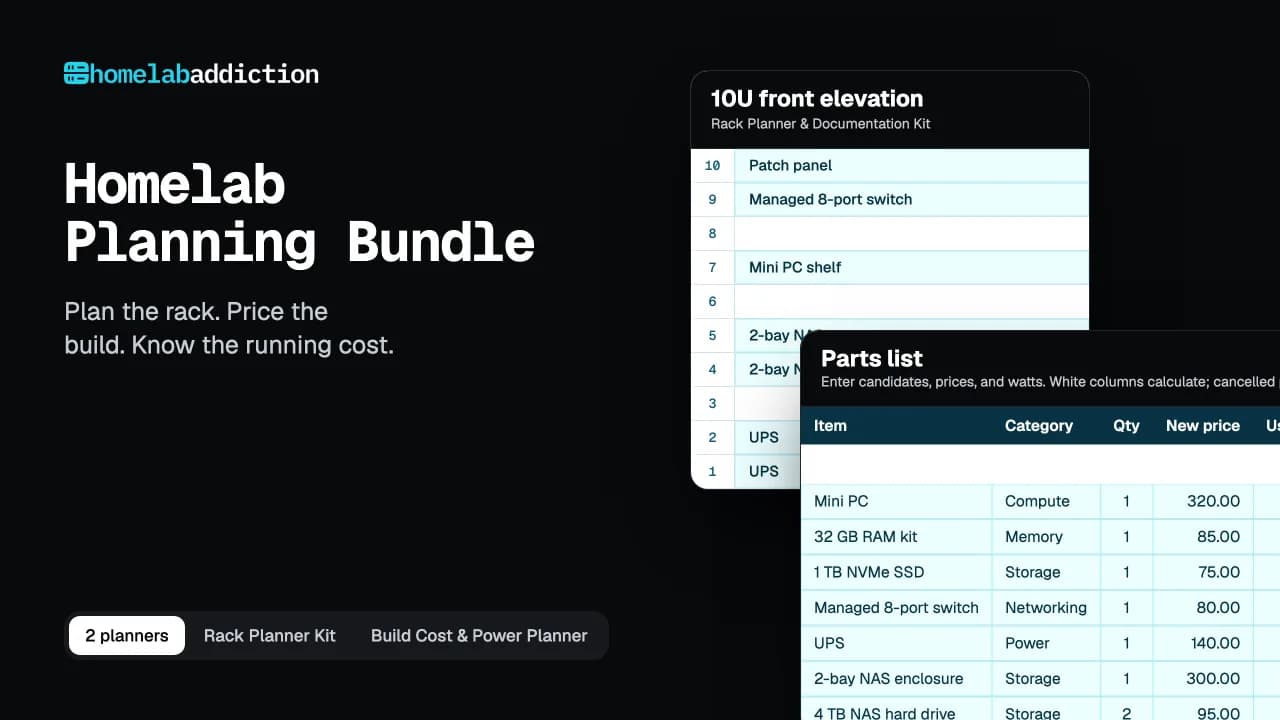
Homelab Planning Bundle
Now price the whole build
Two planners in one download. One works out what your lab will cost to buy and to run. The other maps where every part goes in the rack.
- Build Cost & Power Planner: Excel workbook with parts list, budget, power cost, and build phases
- Rack Planner & Documentation Kit: 17-page printable and fillable PDF
- Filled example build, so you can see every formula working
- Quick-start guide in A4 and US Letter
$19.99$27.98 bought separatelySave $7.99
Nothing hidden
How the plan is worked out
Each line uses the IoT network from the example above, so you can check any row by hand.
- Subnet
- base network, with the VLAN ID as the third octet10.0.0.0 + VLAN 40 = 10.0.40.0/24
- Usable addresses
- 2 ^ (32 − prefix) − 22 ^ (32 − 24) − 2 = 254
- Gateway
- first usable address in the subnet10.0.40.0 + 1 = 10.0.40.1
- Static range
- gateway + 1 up to the static end you set10.0.40.2 – 10.0.40.99 = 98 addresses
- DHCP pool
- pool start up to broadcast − 110.0.40.100 – 10.0.40.254 = 155 leases
- Room to grow
- third octets from 1 to 255 that no network uses yet255 − 7 networks = 248 more
Before you copy it into your router
What will bite you
01
Skip 192.168.0.x and 192.168.1.x
Most ISP routers, hotels and offices use them. Plan your lab on one and your VPN can’t tell home from the network you’re sitting on.
02
Leave VLAN 1 empty
It’s the default on every switch, so any port you forgot to set lands there. Give management its own VLAN instead.
03
Casting stops at the VLAN edge
Chromecast, AirPlay and printers find each other with mDNS, which stays inside one VLAN. Turn on an mDNS repeater if Trusted needs to see IoT.
04
Keep static IPs out of the DHCP pool
If the router can hand out an address you also set by hand, two devices end up fighting over it. The planner keeps the two ranges apart.
Questions
IP & VLAN planner FAQ
Why match the VLAN ID to the third octet?
So you can read the VLAN straight off an address. 10.0.40.23 is on VLAN 40, and you never have to look it up. It needs a base of /16 or bigger, and VLAN IDs from 1 to 255; turn it off if yours go higher and the networks are packed in order instead.
Is a /24 too big for a homelab VLAN?
No. A /24 gives each network 254 addresses, and the 10.x range has room for 255 of them, so a smaller subnet saves nothing at home. It does leave you renumbering the day a network outgrows it. Use a /25 or smaller only where you know the device count will stay low.
Should I use 10.x, 172.16.x or 192.168.x?
All three are private ranges that never appear on the internet. 10.x has the most room. Whichever you choose, stay off 192.168.0.x, 192.168.1.x and 10.0.0.x: ISP routers, hotels and offices use them, and a VPN can’t reach your lab while you sit on a network with the same addresses. Docker also claims 172.17.x for its default bridge.
Will this work with OPNsense, pfSense and UniFi?
The address plan works with any router. The firewall rules are written the way OPNsense names things, and pfSense uses the same names. UniFi’s zone-based firewall groups networks into zones instead, so use the reach matrix as the policy and build the zones to match it.
Is anything I type saved or sent anywhere?
No. The planner runs in your browser and your addresses are never sent anywhere. The page records that the planner was used, and which format you exported, without the values you entered.
Newsletter
Get the next tested guide in your inbox
One email when a new guide or tool goes up. You can leave with one click.
Enter your email address to receive the Homelab Addiction newsletter.