Disclosure: This article may contain affiliate links. If you purchase through these links, HomelabAddiction may earn a commission at no additional cost to you.
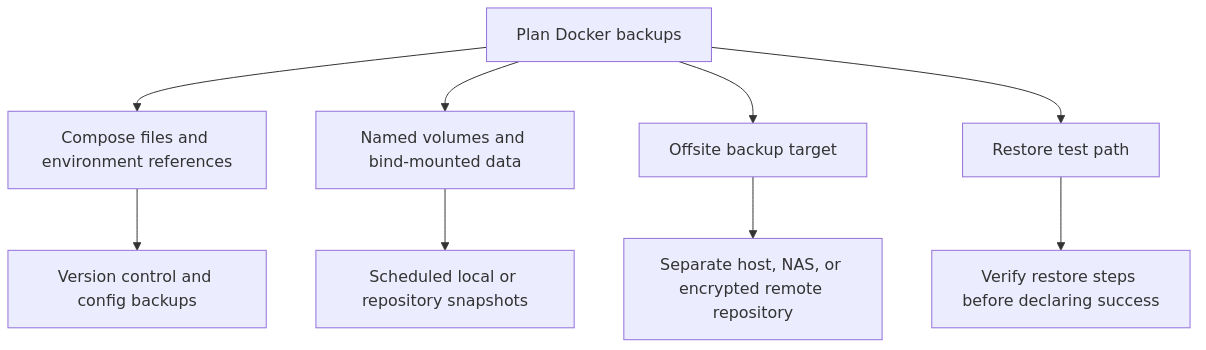
A workable Docker backup plan protects more than the containers themselves. The files that rebuild the stack, the volumes or bind mounts that hold persistent data, and the restore path all need to be treated as separate failure points.
This page helps homelab operators decide what to back up first, how to separate application state from disposable containers, and how to keep offsite copies and restore drills tied to the same workflow instead of scattered one-off scripts.
For most homelabs, the durable baseline is simple: keep Compose files and environment references under version control, back up named volumes or bind-mounted data on a schedule, and test restores on a spare path before assuming the job is finished.
Key Takeaways
Back up persistent data, Compose definitions, and secret references separately, because rebuilding a container image does not restore the application state behind it.
Named volumes, bind mounts, and offsite repositories need different handling even when they support the same service.
A restore test is part of the backup plan, not a later optional step.
Direct internal links should point to the retained Docker storage and Compose guides rather than merged archive URLs.
Docker backup scope map: keep Compose definitions, persistent data, and at least one separate restore target in the same recovery plan.
What Needs to Be Backed Up
Before we get into tools and scripts, let us understand what Docker actually stores and where. Think of a Docker setup like a house - there are the walls (containers), the furniture (volumes with data), and the blueprints (configuration files). You need to protect all three.
Container Images
Container images are the read-only templates that your containers run from. You pull them from Docker Hub or other registries, and they contain the operating system, application code, and dependencies.
The good news is that you do not need to back up images you pulled from a public registry. If your internet connection works, you can always pull them again. However, if you built custom images locally with your own Dockerfile, you should push them to a private registry or export them as tar files.
Volumes and Bind Mounts
This is where your actual data lives. Docker volumes and bind mounts store your databases, uploaded files, configuration data, and everything else that changes during normal operation. If you lose a volume, you lose the data - and that is the part that hurts.
We covered the difference between volumes and bind mounts in our Docker volumes vs bind mounts guide, but for backup purposes, the key point is: both need to be backed up. Volumes are managed by Docker and stored in /var/lib/docker/volumes/. Bind mounts are just regular directories on your host filesystem.
Docker Compose Files
Your docker-compose.yml files are the blueprints for your entire stack. They define which containers run, how they connect, what volumes they use, and what environment variables they need. Without these files, rebuilding a complex stack from memory is nearly impossible.
Store Compose files and environment references in version control so infrastructure changes, restore inputs, and rollback points stay tied to the same recovery record.
Environment Variables and Secrets
Environment variables defined in .env files or passed inline with docker run commands are easy to lose and hard to reconstruct. If you use a .env file alongside your compose file, back it up together. If you pass variables inline, document them somewhere outside your head.
For secrets (API keys, passwords, database credentials), consider using Docker secrets or a dedicated secrets manager. Our Docker security hardening guide covers secure secrets management in detail.
The 3-2-1 Backup Rule for Docker
The 3-2-1 rule is a well-known principle in data protection, and it applies perfectly to Docker environments:
3 copies of your data (the original plus two backups)
2 different storage media (local disk + NAS, NAS + cloud, etc.)
1 copy offsite (physically different location)
For a Docker homelab, here is what that looks like in practice:
Copy 1: Your live Docker containers and volumes on the production server
Copy 2: A local backup on a NAS or separate drive
Copy 3: An offsite backup using cloud storage or a remote server
The local backup protects against drive failure and accidental deletion. The offsite backup protects against fire, flood, theft, or ransomware. Both are necessary - having only local backups means a single catastrophic event can wipe out everything.
Method 1: Backing Up Docker Volumes with Scripts
The most straightforward approach is to write a shell script that copies your Docker volume data to a backup location. This works for both named volumes and bind mounts.
Backing Up Named Volumes
Docker volumes are stored in /var/lib/docker/volumes/ by default. You can back up a volume by running a temporary container that mounts the volume and copies its contents to a tar file:
#!/bin/bash
# backup-volume.sh - Back up a Docker volume

VOLUME_NAME="myapp_data"
BACKUP_DIR="/mnt/backups/docker-volumes"
DATE=$(date +%Y-%m-%d_%H-%M-%S)
BACKUP_FILE="${BACKUP_DIR}/${VOLUME_NAME}_${DATE}.tar.gz"

# Create backup directory if it does not exist
mkdir -p "$BACKUP_DIR"

# Run a temporary container to back up the volume
docker run --rm \
  -v "${VOLUME_NAME}:/source:ro" \
  -v "${BACKUP_DIR}:/backup" \
  alpine tar czf "/backup/$(basename $BACKUP_FILE)" -C /source .

echo "Backed up volume ${VOLUME_NAME} to ${BACKUP_FILE}"
echo "Size: $(du -h "$BACKUP_FILE" | cut -f1)"
This approach is clean because it does not require installing anything on your host. The temporary alpine container spins up, copies the data, and exits. The volume is mounted read-only (:ro) so there is no risk of modifying it during backup.
Backing Up Bind Mounts
Bind mounts are easier because they are just directories on your host. You can back them up with standard filesystem tools:
transmission signup
article_topic // Docker Backup Strategies for Homelabs
Don't leave without the setup notes.
Get practical homelab guides, failure logs, and beginner-friendly build notes in your inbox.
Enter your email address to receive the Homelab Addiction newsletter.
Weekly only. No spam. Unsubscribe anytime.
#!/bin/bash
# backup-bind-mount.sh - Back up Docker bind mounts

SOURCE_DIR="/srv/docker/myapp/config"
BACKUP_DIR="/mnt/backups/docker-bind-mounts"
DATE=$(date +%Y-%m-%d_%H-%M-%S)

mkdir -p "$BACKUP_DIR"

tar czf "${BACKUP_DIR}/myapp-config_${DATE}.tar.gz" -C "$(dirname $SOURCE_DIR)" "$(basename $SOURCE_DIR)"

echo "Backed up ${SOURCE_DIR} to ${BACKUP_DIR}"
Backing Up Multiple Volumes
When you run several Docker services, you need to back up multiple volumes. Here is a script that backs up all volumes in a list:
#!/bin/bash
# backup-all-volumes.sh

VOLUMES=(
  "nextcloud_data"
  "postgres_data"
  "jellyfin_config"
  "vaultwarden_data"
)

BACKUP_DIR="/mnt/backups/docker-volumes"
RETENTION_DAYS=7
DATE=$(date +%Y-%m-%d_%H-%M-%S)

mkdir -p "$BACKUP_DIR"

for VOLUME in "${VOLUMES[@]}"; do
  echo "Backing up ${VOLUME}..."
  docker run --rm \
    -v "${VOLUME}:/source:ro" \
    -v "${BACKUP_DIR}:/backup" \
    alpine tar czf "/backup/${VOLUME}_${DATE}.tar.gz" -C /source .

  if [ $? -eq 0 ]; then
    echo "  ✓ ${VOLUME} backed up successfully"
  else
    echo "  ✗ Failed to back up ${VOLUME}"
  fi
done

# Clean up old backups
find "$BACKUP_DIR" -name "*.tar.gz" -mtime +${RETENTION_DAYS} -delete
echo "Cleaned up backups older than ${RETENTION_DAYS} days"
Method 2: Docker Compose Export and Import
If you use Docker Compose to manage your stacks, your compose file is your most important backup asset. It defines everything about how your services run.
Exporting Your Compose Stack
Make sure all your compose files are in a git repository. This is the simplest and most effective backup:
# Initialize a git repo for your compose files
cd /srv/docker
git init
git add .
git commit -m "Initial compose file backup"
git remote add origin [email protected]:youruser/docker-compose-backup.git
git push -u origin main
Every time you change a compose file, commit and push. This gives you a complete history of your infrastructure changes.
Exporting Running Container Config
If you have containers that were created with docker run instead of Compose, you can export their configuration:
# Get the full run command for a container
docker inspect --format='{{json .Config}}' container_name | python3 -m json.tool

# Or export the complete inspect data
docker inspect container_name > container_config.json
For a more practical approach, you can recreate the docker run command from the container's inspect data. Docker provides a handy tool for this:
# Install runlike (pip install runlike)
pip install runlike

# Get the docker run command for a container
runlike container_name
This gives you the exact docker run command needed to recreate the container, including all volume mounts, environment variables, port mappings, and network settings.
Method 3: Docker Commit for Container Snapshots
Docker commit creates a new image from a running container's current state. Think of it as a snapshot of everything inside the container at that moment - including any changes made since the container was created.
# Create a snapshot of a running container
docker commit my_running_container my_backup:$(date +%Y-%m-%d)

# Save the image to a tar file
docker save my_backup:2026-06-12 -o /mnt/backups/images/my_backup_2026-06-12.tar

# To restore later:
docker load -i /mnt/backups/images/my_backup_2026-06-12.tar
Important caveat: Docker commit is not a replacement for volume backups. The image snapshot captures the container's filesystem, but data stored in volumes is separate. Use commit for capturing application state and configuration changes, not for data backup.
This method is most useful when you have made manual changes inside a container (installed packages, modified config files) and want to preserve that state without rebuilding the image.
Method 4: Automated Backups with systemd Timers
Manual backups are fine until you forget to run them. Automating your backups is the single most important step in making your backup strategy actually work. While cron is the traditional choice, systemd timers offer better logging, dependency management, and reliability.
Creating a Backup Timer
Here is how to set up automated Docker volume backups using systemd:
# Create the service file
sudo tee /etc/systemd/system/docker-backup.service << 'EOF'
[Unit]
Description=Docker Volume Backup
After=docker.service
Requires=docker.service

[Service]
Type=oneshot
ExecStart=/usr/local/bin/docker-volume-backup.sh
Nice=19
IOSchedulingClass=idle
EOF

# Create the timer file
sudo tee /etc/systemd/system/docker-backup.timer << 'EOF'
[Unit]
Description=Run Docker Volume Backup Daily

[Timer]
OnCalendar=daily
Persistent=true
RandomizedDelaySec=1800

[Install]
WantedBy=timers.target
EOF

# Enable and start the timer
sudo systemctl daemon-reload
sudo systemctl enable docker-backup.timer
sudo systemctl start docker-backup.timer
The RandomizedDelaySec=1800 setting adds a random delay of up to 30 minutes. This prevents all your backup jobs from hitting your disks at exactly the same time if you have multiple timers.
You can check the status with:
# Check if the timer is active
systemctl status docker-backup.timer

# Check when the next run is scheduled
systemctl list-timers docker-backup.timer

# View backup logs
cat /var/log/docker-backup.log
Method 5: Offsite Backup with Restic
Following the 3-2-1 rule, you need an offsite copy. Restic is an excellent tool for this - it is fast, encrypted, deduplicated, and works with many storage backends including local directories, SFTP, and cloud storage.
Setting Up Restic for Docker Backups
# Install restic
sudo apt install restic  # Debian/Ubuntu
# or
sudo pacman -S restic    # Arch Linux

# Initialize a backup repository (local example)
restic init --repo /mnt/backup-restic

# Or initialize with an SFTP backend (offsite)
restic init --repo sftp:backup-server:/backups/docker
Backing Up Docker Data with Restic
#!/bin/bash
# restic-docker-backup.sh - Back up Docker data to offsite location

BACKUP_DIR="/mnt/backups/docker-staging"
RESTIC_REPO="/mnt/backup-restic"
LOG_FILE="/var/log/docker-restic-backup.log"

# Stage all volume backups in a temp directory
docker run --rm \
  -v "nextcloud_data:/source:ro" \
  -v "${BACKUP_DIR}:/backup" \
  alpine tar czf "/backup/nextcloud_data.tar.gz" -C /source .

docker run --rm \
  -v "postgres_data:/source:ro" \
  -v "${BACKUP_DIR}:/backup" \
  alpine tar czf "/backup/postgres_data.tar.gz" -C /source .

# Also back up compose files and configs
tar czf "${BACKUP_DIR}/compose-files.tar.gz" -C /srv/docker docker-compose.yml .env

# Run restic backup with deduplication and encryption
export RESTIC_PASSWORD="your-secure-password-here"
restic -r "$RESTIC_REPO" backup "$BACKUP_DIR" \
  --tag docker-backup \
  --verbose 2>>"$LOG_FILE"

# Prune old snapshots (keep 7 daily, 4 weekly, 6 monthly)
restic -r "$RESTIC_REPO" forget \
  --keep-daily 7 \
  --keep-weekly 4 \
  --keep-monthly 6 \
  --prune 2>>"$LOG_FILE"

echo "Restic backup complete: $(date)" >> "$LOG_FILE"
The beauty of Restic is that it deduplicates data across backups. If you back up the same 50GB volume every day but only 100MB changed, Restic only stores the 100MB difference. This saves enormous amounts of storage over time.
For cloud offsite storage, you can use Backblaze B2, which works natively with Restic:
# Back up to Backblaze B2
export B2_ACCOUNT_ID="your-key-id"
export B2_ACCOUNT_KEY="your-application-key"
restic -r b2:your-bucket-name:docker-backups backup /mnt/backups/docker-staging
Restoring from Backup
A backup you cannot restore is not really a backup. Here is how to restore each type of Docker data.
Restoring a Volume from a Tar Backup
# Find your backup file
ls -la /mnt/backups/docker-volumes/nextcloud_data_*.tar.gz

# Restore the volume
docker run --rm \
  -v "nextcloud_data:/destination" \
  -v "/mnt/backups/docker-volumes:/backup:ro" \
  alpine tar xzf "/backup/nextcloud_data_2026-06-12_08-00-00.tar.gz" -C /destination

echo "Volume restored. Restart the container to use the data."
docker restart nextcloud
Restoring a Complete Stack
If you have lost everything and need to rebuild from scratch:
Pull your compose files from git (or restore from backup)
Recreate the Docker networks
Start the containers with docker compose up -d
Restore the volume data from your backups
Restart the containers to pick up the restored data
# Step 1: Clone your compose files
git clone [email protected]:youruser/docker-compose-backup.git /srv/docker

# Step 2: Start the stack
cd /srv/docker
docker compose up -d

# Step 3: Restore volume data (for each volume)
docker run --rm \
  -v "nextcloud_data:/destination" \
  -v "/mnt/backups/docker-volumes:/backup:ro" \
  alpine tar xzf "/backup/nextcloud_data_2026-06-12_08-00-00.tar.gz" -C /destination

# Step 4: Restart containers
docker compose down
docker compose up -d
Restoring from Restic
# List available snapshots
restic -r /mnt/backup-restic snapshots

# Restore the latest snapshot
restic -r /mnt/backup-restic restore latest --target /tmp/restore

# Or restore a specific snapshot
restic -r /mnt/backup-restic restore abc1234 --target /tmp/restore
Testing Your Backups
This is the part most people skip - and it is the part that matters most. A backup that has never been tested is a hope, not a plan. Here is how to verify your backups actually work.
The Monthly Restore Test
Pick one day each month to test your restore process. It does not have to be the full stack - just pick one volume and restore it to a temporary location:
# Create a test directory
mkdir -p /tmp/backup-test

# Restore a volume to the test directory
docker run --rm   -v "nextcloud_data:/source:ro"   -v "/tmp/backup-test:/backup"   alpine tar czf "/backup/nextcloud_data_test.tar.gz" -C /source .

# Now restore it to a temporary volume
docker volume create nextcloud_data_test
docker run --rm   -v "nextcloud_data_test:/destination"   -v "/tmp/backup-test:/backup:ro"   alpine tar xzf "/backup/nextcloud_data_test.tar.gz" -C /destination

# Verify the data looks correct
docker run --rm   -v "nextcloud_data_test:/data:ro"   alpine ls -la /data

# Clean up
docker volume rm nextcloud_data_test
rm -rf /tmp/backup-test
If the data looks correct and the file structure matches what you expect, your backup is working. If not, you have discovered the problem now - not when you actually need to restore.
What to Check During a Restore Test
File count and sizes - Do the restored files match what you expect?
Timestamps - Are the file modification times reasonable?
Database integrity - Can you query a restored database and get valid results?
Configuration files - Are environment variables and settings preserved?
Application startup - Can you start a container using the restored data?
Document Your Restore Process
Write down the exact steps to restore each of your critical services. Keep this document somewhere outside your homelab - a note on your phone, a printed sheet, or a cloud document. When something goes wrong at 2 AM, you do not want to be figuring out restore commands from memory.
This document is your insurance policy. Write it once, update it when things change, and you will never have to scramble during a real emergency.
From the lab
Common Mistakes to Avoid
The same Docker backup mistakes show up repeatedly: assuming containers contain the only state that matters, skipping offsite copies, and never validating a restore before an outage forces the issue.
Mistake 1: Only backing up images. Pulling an image from Docker Hub is not a backup. The image is just the template - your actual data lives in volumes. If you back up only images and lose your volumes, you have lost everything that matters.
Mistake 2: Not testing restores. The worst time to discover your backup does not work is when you actually need it. Schedule a monthly restore test. Pick a random backup, restore it to a test location, and verify the data is intact.
Mistake 3: Storing backups on the same drive as your data. If the drive fails, both your data and your backup are gone. Use a separate drive, a NAS, or cloud storage for your backup copies.
Mistake 4: Forgetting about Docker Compose files. You might remember what containers you run, but can you remember every volume mount, environment variable, and port mapping? Your compose files are infrastructure-as-code - treat them like source code and back them up with git.
Mistake 5: No offsite copy. A local backup on the same physical premises protects against drive failure but not against fire, flood, or theft. Even a simple strategy like copying backups to a USB drive and storing it at a friend's house counts as offsite.
What to Learn Next
Once you have your Docker backup strategy in place, here are some next steps to strengthen your homelab:
Docker Security Hardening - Backups protect your data, but security prevents unauthorized access in the first place
As an Amazon Associate, we earn from qualifying purchases.
Frequently Asked Questions
How often should I back up my Docker containers?
For most homelabs, daily backups are sufficient for critical data like databases and personal files. Less critical data like media libraries can be backed up weekly. The key is automating the process so you do not have to remember to run it. Set up a systemd timer or cron job and let it run in the background.
Do I need to stop containers before backing up volumes?
For most applications, you can back up volumes while containers are running. The tar backup captures the data as it exists at that moment. However, for databases that need transaction consistency, you should either stop the container first or use the database's built-in backup tool (like pg_dump for PostgreSQL or mysqldump for MySQL) to create a consistent snapshot before backing up the volume.
What is the difference between docker commit and backing up volumes?
Docker commit creates a snapshot of the container's filesystem - the operating system, installed packages, and any files stored directly in the container. Volume backups capture data stored in Docker volumes or bind mounts, which is where your application data lives. You need both: commit for container state, volume backup for your actual data.
Can I use Docker's built-in export/import for backups?
Yes, but with caveats. Docker export creates a tar file of a container's filesystem, and docker import creates an image from it. This works for capturing container state, but it does not preserve volume data, layer history, or build metadata. For complete backups, combine export with volume backup scripts.
How do I back up a Docker container that uses both volumes and bind mounts?
You need to back up each type separately. For volumes, use the temporary container method with docker run. For bind mounts, back up the host directories directly with tar or rsync. Make sure your backup script covers both the volume names defined in your compose file and any bind mount paths.
This retained rewrite was refreshed against Docker and restic documentation so the backup guidance is framed around documented storage behavior and restore boundaries instead of unsupported first-person anecdotes.
transmission signupstatus: open channel
article_topic // Docker Backup Strategies for Homelabs
Start building a smarter homelab.
Join readers learning Proxmox, networking, storage, backups, and self-hosting without breaking everything.
Enter your email address to receive the Homelab Addiction newsletter.
Beginner-friendly
No gatekeeping. Just clear, actionable guides.
1 useful email / week
Practical tips, real-world setups, and lessons learned.
Zero hype, practical only
What works, what breaks, and how to fix it.
Reply to any email with what you're building. I read and reply to as many as I can.
— The Homelab Addiction Operator
support // the lab
Found this guide useful?
If it saved you time or a rebuild, you can support more practical homelab guides.


 alt="WD Red Plus 8TB NAS Hard Drive"
 alt="Samsung T7 1TB Portable SSD"
 alt="APC Back-UPS 600VA"