VLANs for Homelabs Explained: Start with 4 Segments and Test One Boundary at a Time
Plan VLANs in a homelab by separating management, trusted clients, servers, and IoT or guest devices, then verifying trunks, access ports, DHCP scopes, and firewall policy one boundary at a time.
FTC Disclosure: This article contains affiliate links. If you purchase through these links, we may earn a commission at no additional cost to you.
Documentation basis: This starter guide is grounded in standard 802.1Q VLAN behavior plus the router, switch, and firewall segmentation patterns referenced throughout the article. It is written to help a reader separate device trust zones methodically; no vendor-specific interoperability claim is made here unless the article states one explicitly.
VLANs matter because they let a homelab stop treating every device as equally trusted. Management devices, servers, personal clients, and IoT or guest gear can each live on separate Layer 2 segments with distinct firewall policy between them.
The practical rollout is smaller than most networking guides make it sound: define a few clear trust zones, assign ports and DHCP scopes carefully, and verify one boundary at a time before adding more complexity.
This page helps a homelab operator start with a four-segment design they can still troubleshoot later instead of jumping straight into an overbuilt network map.
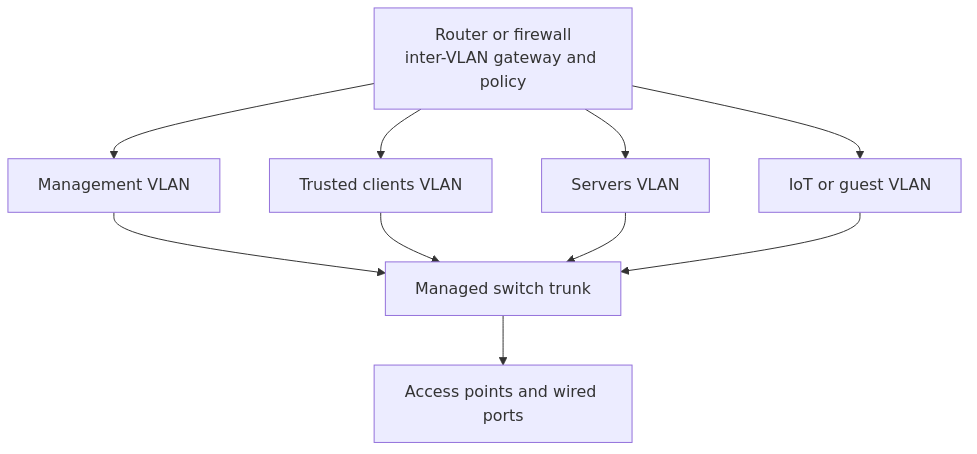
Starter VLAN layout: keep management, trusted clients, servers, and IoT or guest devices in separate segments, then let the firewall decide what can cross between them.
Key Takeaways
VLANs let you split one physical network into separate logical networks.
For a homelab, the biggest win is security and organization, not enterprise cosplay.
A good starter design is usually 4 VLANs: management, trusted devices, servers, and IoT or guest.
You need both a managed switch and a VLAN-capable router or firewall.
VLANs alone do not enforce isolation well enough. Your firewall rules do the real work between networks.
The three beginner mistakes that break everything are wrong port types, missing DHCP scopes, and forgetting DNS or mDNS behavior across VLANs.
Start small, test each VLAN one at a time, and add complexity only after the basics work.
Why this matters before you touch a single setting
A flat network feels fine right up until it does not.
On a flat network, your phone, work laptop, NAS, Proxmox host, random camera, cheap smart plug, smart TV, test containers, and guest devices all live in one trust zone. That is convenient. It is also lazy. One bad device or one bad rule can expose far more than you intended.
VLAN segmentation matters because it gives the firewall or router real boundaries to enforce between device groups that should not all trust each other equally.
The managed switch handles tagging and port membership. The firewall or router handles the gateway, DHCP relay or scope logic, and the access policy between those segments.
A VLAN ID marks which Layer 2 segment a frame belongs to.
A trunk port carries traffic for more than one VLAN between network devices.
An access port places a single endpoint into a specific VLAN.
The firewall decides which VLANs can reach one another and on which ports.
A VLAN, or Virtual Local Area Network, is a way to split one physical network into multiple isolated Layer 2 networks.
That sentence is technically correct and emotionally useless, so here is the practical version.
Normally, if devices plug into the same simple switch, they are on the same local network. They can discover each other, broadcast to each other, and generally behave like roommates who have no concept of privacy.
A VLAN lets that same switch pretend to be several different switches.
So instead of this:
Laptop
NAS
Camera
Guest phone
Home Assistant
Test server
all sharing one big local space, you get this:
VLAN 10 - trusted devices
VLAN 20 - servers
VLAN 30 - IoT
VLAN 40 - guests
Now those groups do not talk freely unless your router or firewall allows it.
VLANs, subnets, tagged traffic, and trunks - the four things beginners mix up
This is where most frustration starts, so let us untangle it.
VLAN vs subnet
A VLAN is the local broadcast domain on the switch side.
A subnet is the IP network you assign to that VLAN, like 192.168.20.0/24.
In practice, homelabs usually map one VLAN to one subnet.
Example:
VLAN 10 -> 192.168.10.0/24
VLAN 20 -> 192.168.20.0/24
VLAN 30 -> 192.168.30.0/24
That one-to-one mapping keeps your brain from filing a complaint against you later.
Tagged vs untagged traffic
A VLAN tag is a label on an Ethernet frame that says, "This belongs to VLAN 20."
Tagged traffic carries that label.
Untagged traffic does not.
Think of tagged traffic like envelopes with colored stickers. The switch reads the sticker and knows which VLAN the traffic belongs to.
transmission signup
article_topic // VLANs for Homelabs Explained
Don't leave without the setup notes.
Get practical homelab guides, failure logs, and beginner-friendly build notes in your inbox.
Enter your email address to receive the Homelab Addiction newsletter.
Weekly only. No spam. Unsubscribe anytime.
Access port vs trunk port
An access port carries one VLAN for a normal end device like a desktop, printer, or camera.
A trunk port carries multiple VLANs between network devices, like:
router/firewall to switch
switch to switch
switch to access point
hypervisor to switch, if VMs need multiple VLANs
If you plug a normal PC into a trunk port without meaning to, you are probably about to have a confusing afternoon.
PVID or native VLAN
Many switches use a PVID or default VLAN ID for untagged traffic arriving on a port.
That matters because if a port is supposed to place an IoT device into VLAN 30, the port's untagged or default VLAN has to match that design.
This is one of the most common causes of "why did this camera get the wrong IP range?"
The hardware you actually need
You do not need enterprise gear. You do need the right features.
1. A managed switch
An unmanaged switch cannot do this job.
You need a switch that supports 802.1Q VLANs. That could be:
a budget smart switch
a UniFi switch
a MikroTik switch
an Omada switch
a used enterprise switch if you enjoy second-hand networking hardware and mystery fan noise
3. A VLAN-aware access point, if Wi-Fi is involved
If you want separate SSIDs for trusted, IoT, or guest Wi-Fi, your AP has to support mapping SSIDs to VLANs.
Recommended gear if you are building this from scratch
You do not need to buy all of this at once, but these are sensible categories for a VLAN-ready homelab:
Managed 2.5GbE switch with VLAN support - this is the practical upgrade when you want proper segmentation plus room to grow. Recommended search link
Fanless Intel N100 mini PC with 4x 2.5GbE - a very good fit for pfSense or OPNsense when you want a dedicated router or firewall box. Recommended search link
Protectli-style firewall appliance - still a clean option if you prefer purpose-built network hardware over repurposed mini PCs. Recommended search link
A sane starter VLAN design for most homelabs
You do not need ten VLANs on day one. That is how people end up writing sad notes to themselves about mDNS at midnight.
Start with four.
VLAN ID
Name
Subnet
What goes here
10
Management
192.168.10.0/24
switch UI, AP management, hypervisor management, firewall admin
20
Trusted
192.168.20.0/24
laptops, desktops, phones you trust
30
Servers
192.168.30.0/24
NAS, Proxmox services, containers, internal apps
40
IoT / Guest
192.168.40.0/24
smart plugs, TVs, cameras, guest Wi-Fi
Why this matters:
Management gets isolated because admin interfaces should not sit on the same network as every random client.
Trusted keeps your daily devices together.
Servers gives your infrastructure a predictable place to live.
IoT / Guest gives you the biggest immediate security improvement with the least effort.
If you later outgrow this, split VLAN 40 into separate IoT and Guest networks.
Step-by-step: the order that keeps you from breaking your own network
Do this in order. The order matters more than people admit.
Step 1: plan VLAN IDs, subnets, and names
Write them down before you click anything.
A bad VLAN design is like labeling moving boxes after you already threw everything into the truck.
Use a simple table like the one above. Keep IDs memorable. Keep subnets aligned with VLAN IDs if possible.
That means:
VLAN 10 -> 192.168.10.0/24
VLAN 20 -> 192.168.20.0/24
VLAN 30 -> 192.168.30.0/24
VLAN 40 -> 192.168.40.0/24
That pattern is not required, but it saves you from avoidable confusion.
Step 2: create VLAN interfaces on the router or firewall
This is the actual gateway side.
On pfSense or OPNsense, you will typically:
pick the parent physical interface, like igb0 or em0
create VLAN 10, 20, 30, and 40 on that interface
assign each VLAN to a logical interface
give each interface a gateway IP such as:
192.168.10.1/24
192.168.20.1/24
192.168.30.1/24
192.168.40.1/24
Official references if you want vendor documentation while you build:
If DHCP is missing, devices may connect physically but never get useful addresses. That often makes people blame the switch when the real problem is the gateway.
For each VLAN, define a DHCP range such as:
VLAN 10: 192.168.10.100-199
VLAN 20: 192.168.20.100-199
VLAN 30: 192.168.30.100-199
VLAN 40: 192.168.40.100-199
If you need a refresher on DHCP behavior, read DHCP Explained for Homelabs. It is much easier to troubleshoot VLANs when you can immediately recognize whether a device landed in the wrong scope.
Step 4: configure the switch uplink as a trunk
The cable between your firewall and switch usually needs to carry multiple VLANs.
That means the uplink should be a trunk port.
A vendor-neutral idea of that config looks like this:
port 1 = trunk
allowed VLANs: 10,20,30,40
native/untagged VLAN: management or none, depending on platform design
If you are working on a Cisco-like CLI, it often looks like this:
Real commands to test whether your VLAN setup is actually working
This is the part many guides skip, and it is why so many people end up guessing.
On a Linux box, create a temporary VLAN interface for testing
If you have a Linux host connected to a trunk and want to verify tagged traffic manually:
sudo ip link add link eno1 name eno1.30 type vlan id 30
sudo ip addr add 192.168.30.10/24 dev eno1.30
sudo ip link set eno1.30 up
ip addr show eno1.30
ip route
Why this matters:
This gives you a direct way to test whether VLAN 30 is really reachable from that trunk.
Check VLAN membership on a Linux bridge or host
bridge vlan show
That command is useful on Linux-based hosts, hypervisors, or lab routers because it shows which VLANs are present on which interfaces.
Test DHCP and gateway reachability
ping -c 3 192.168.30.1
If the device is on VLAN 30, it should be able to reach the VLAN 30 gateway.
Check how traffic is flowing
traceroute 192.168.20.1
If inter-VLAN routing is allowed, this helps show whether the firewall is actually routing the path you expect.
Confirm the tag is really there
sudo tcpdump -eni eno1 vlan 30
If you see VLAN-tagged frames, the trunk is doing its job. If you do not, your switch port or upstream interface is probably misconfigured.
The mistakes that catch beginners first
1. Creating VLANs on the switch but not on the firewall
This creates isolated islands with no gateway.
Symptoms:
clients get no IP
no internet access
weird partial connectivity
2. Making the wrong port a trunk
Normal endpoints should usually be on access ports, not trunks.
Symptoms:
device gets no IP
device lands on wrong network
AP broadcasts the right SSID but clients pull the wrong subnet
3. Forgetting DNS and service discovery
This one hurts because it looks random.
Your DNS resolver, mDNS reflector, Chromecast discovery, AirPlay, and Home Assistant discovery can all behave differently across VLANs.
That does not mean VLANs are broken. It means discovery traffic is no longer floating freely across the whole house, which is the point.
If DNS has been one of your recurring pain points, our older Homelab DNS guide is worth revisiting after segmentation.
4. Over-segmenting too early
You do not need a dedicated VLAN for every emotional state.
Beginners often create:
one VLAN for cameras
one for TVs
one for game consoles
one for printers
one for voice assistants
one for random future ideas
Then they spend days writing exceptions for traffic they barely understand.
Start with four. Add more only when a clear need appears.
5. Skipping logging
Log deny rules when you first roll this out.
That gives you a map of what devices are trying to do. A blocked log is not just noise. It is a clue about dependencies you forgot to account for.
A practical starter policy that works for many home labs
If you want the short version, do this:
Put admin interfaces on VLAN 10.
Put your normal client devices on VLAN 20.
Put servers and self-hosted apps on VLAN 30.
Put IoT and guests on VLAN 40.
Allow VLAN 20 to reach VLAN 30 where needed.
Block VLAN 40 from reaching VLAN 10 and VLAN 20.
Allow VLAN 40 internet access, unless you intentionally run a no-internet camera or device segment.
Keep DNS resolvers predictable and documented.
That gets you most of the benefit without turning your homelab into a puzzle box.
Common mistakes
These are the most common failure points when a first VLAN rollout stops passing traffic:
assigning the router uplink as an access port instead of a trunk
forgetting to create a DHCP scope for a new VLAN
putting the switch management interface on the wrong VLAN and locking yourself out
assuming VLANs alone block all inter-network traffic without verifying firewall rules
tagging Wi-Fi SSIDs but forgetting to trunk the AP uplink
putting Home Assistant, printers, or DNS in a segmented network without planning how discovery and access should work
using VLAN 1 for everything important because it is the default
creating too many VLANs before you have a clear rule strategy
If you avoid those, you are already ahead of a surprising number of "advanced" setups.
FAQ
Do I need a managed switch for VLANs?
Yes. An unmanaged switch cannot properly handle 802.1Q VLAN tagging, which is what most real homelab VLAN setups depend on.
Can devices on different VLANs talk to each other?
Not directly at Layer 2. They need routing through a router or firewall, and that traffic can then be allowed or blocked by firewall rules.
Should I put IoT devices on their own VLAN?
Usually yes. That is one of the highest-value VLAN moves you can make because IoT devices are often the least trustworthy things on the network.
What is the difference between a trunk port and an access port?
A trunk carries multiple VLANs between network devices. An access port carries one VLAN for a normal endpoint like a laptop, NAS, or camera.
Is VLAN 1 okay for a homelab?
It is better not to rely on VLAN 1 for important segmentation. Many devices treat it as the default VLAN, and avoiding it for key networks reduces confusion.
What to learn next
Once your VLANs work, the next topics that matter most are:
If you remember nothing else from this guide, remember this: VLANs are not about making your network look impressive. They are about making your network easier to trust, easier to reason about, and easier to recover when something weird happens.
That is why they matter.
transmission signupstatus: open channel
article_topic // VLANs for Homelabs Explained
Start building a smarter homelab.
Join readers learning Proxmox, networking, storage, backups, and self-hosting without breaking everything.
Enter your email address to receive the Homelab Addiction newsletter.
Beginner-friendly
No gatekeeping. Just clear, actionable guides.
1 useful email / week
Practical tips, real-world setups, and lessons learned.
Zero hype, practical only
What works, what breaks, and how to fix it.
Reply to any email with what you're building. I read and reply to as many as I can.
— The Homelab Addiction Operator
support // the lab
Found this guide useful?
If it saved you time or a rebuild, you can support more practical homelab guides.