Disclosure: This article may contain affiliate links. If a purchase is made through those links, the site may earn a commission at no extra cost to the reader. No hands-on testing claim is made here unless the page states it explicitly.
Documentation basis: this refresh is grounded in the official Docker documentation for volumes, bind mounts, and the Docker storage model. No personal lab anecdote or hidden benchmark is used as proof here; the decision points are tied to the storage behavior Docker documents publicly. Primary references used for this refresh: Docker volumes documentation; Docker bind mounts documentation; Docker storage overview.
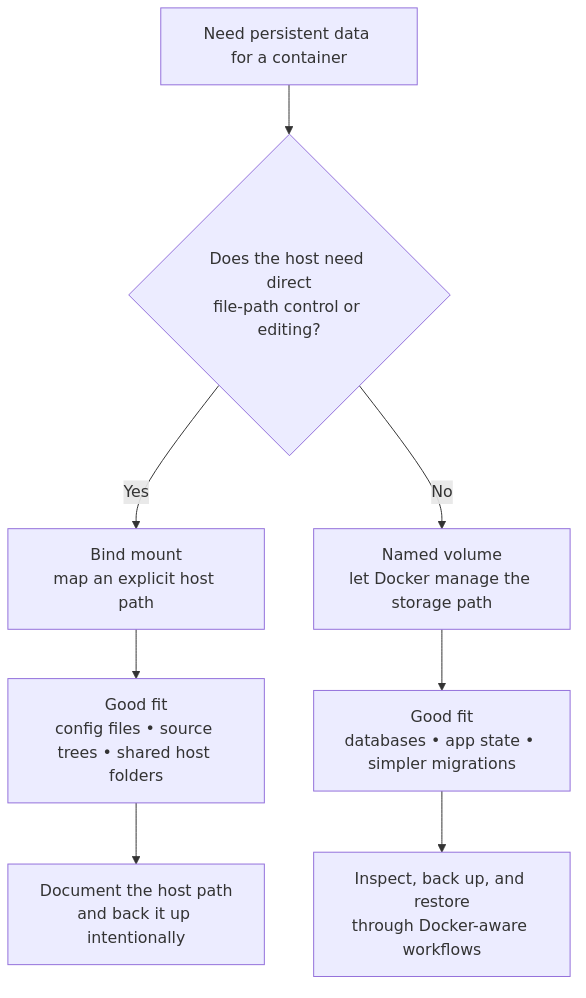
Docker storage decision flow: use a named volume when Docker should manage the data path, and use a bind mount when the host must control or edit the files directly.
This page helps homelab operators decide whether a container should use a Docker volume or a bind mount by tying the choice to the job the data needs to do rather than to habit or folklore.
When Docker should manage the storage location and lifecycle, a named volume is usually the safer default. When the host must edit, inspect, or intentionally expose a specific path, a bind mount is usually the clearer fit.
The unique value of this page is the restore-and-operations lens: it connects Docker's documented storage behavior to common homelab tasks such as keeping app state durable, editing config files on the host, and planning backups that will still make sense six months later.
Why This Matters
Before we talk about the how, let's talk about the why. Containers are ephemeral by design. When you stop a container, its filesystem disappears with it. If you store a database file inside a container and that container crashes or gets replaced during an update, you lose your data.
That's not acceptable for a homelab. Your Jellyfin watch history, your Home Assistant configuration, your Pi-hole statistics - these need to survive container updates. Docker gives you two ways to persist data: volumes and bind mounts.
Think of it like this: a container is a temporary rental apartment. Everything inside it is the landlord's furniture. When you move out (delete the container), everything inside goes with you. Volumes and bind mounts are your personal storage unit - stuff you keep regardless of which apartment you're in.
What Are Docker Volumes?
A Docker volume is a storage location managed entirely by Docker. When you create a volume, Docker sets aside a directory on your host system (usually at /var/lib/docker/volumes/) and gives it a name. Containers can then mount that volume and read from or write to it.
docker volume create jellyfin-config
docker run -v jellyfin-config:/config jellyfin/jellyfin
Here's what's happening: Docker creates a directory somewhere on your host, names it jellyfin-config, and tells the Jellyfin container to treat the /config directory inside the container as that volume. Any data Jellyfin writes to /config actually goes into the Docker-managed volume directory on your host.
Key characteristics of volumes:
Docker creates and manages them
They have friendly names you choose
They work the same across Linux, macOS, and Windows
Docker handles permissions for you
They can be backed up and restored with Docker commands
You can share a volume across multiple containers
The biggest advantage for beginners is that volumes just work. You don't need to know where they're stored on the host. You don't need to set file permissions. You give them a name, mount them in your container, and Docker takes care of the rest.
What Are Bind Mounts?
A bind mount is a direct link between a directory on your host system and a directory inside a container. You pick any path on your host - like /home/akash/jellyfin-config - and mount it into the container.
docker run -v /home/akash/jellyfin-config:/config jellyfin/jellyfin
The difference from a volume is subtle but important. With a volume, Docker manages the storage location. With a bind mount, you're in full control - you point Docker at an existing directory on your host, and the container sees it as a folder inside itself.
Key characteristics of bind mounts:
You control the host path
Files are directly accessible from the host
Great for development (edit code on host, run in container)
File permissions are the host's permissions
Host path must exist or Docker will create it as a directory
Less portable (hardcoded paths)
Bind mounts are the obvious choice when you need to edit files from your host machine. If you're developing a web application, you can edit code in VS Code on your host and see changes instantly inside the running container. That's a powerful workflow.
Side-by-Side Comparison
Feature
Volumes
Bind Mounts
Managed by
Docker
You
Location on host
/var/lib/docker/volumes/
Any path you choose
Host access
Requires root or docker group
Direct - any user can access
Permissions
Docker handles them
Your host permissions apply
Portability
High - works on any system
Low - path-dependent
Backup
docker run --volumes-from
Standard filesystem tools
Empty host path
Volume is created
Container content is exposed
Performance
Native (same as host)
Native (same as host)
Best for
Databases, app data, config
Dev code, media files, logs
One important thing to notice: performance is essentially the same for both. Neither volumes nor bind mounts are inherently faster. The difference is in management, not speed.
transmission signup
article_topic // Docker Volumes vs Bind Mounts for a Homelab
Don't leave without the setup notes.
Get practical homelab guides, failure logs, and beginner-friendly build notes in your inbox.
Enter your email address to receive the Homelab Addiction newsletter.
Weekly only. No spam. Unsubscribe anytime.
When to Use Docker Volumes
Use volumes in these situations:
1. Database Storage
Databases are the poster child for volumes. PostgreSQL, MySQL, MongoDB, Redis - they all need persistent storage that Docker can manage cleanly.
# docker-compose.yml
services:
postgres:
image: postgres:16
volumes:

postgres-data:/var/lib/postgresql/data


volumes:
postgres-data:
If you ever need to migrate your database to a different host, you can back up the volume with docker run --rm -v postgres-data:/data -v $(pwd):/backup alpine tar czf /backup/postgres-backup.tar.gz -C /data . and restore it on the new machine. The volume name stays the same, and your applications don't care where the data physically lives.
2. Application Configuration That Shouldn't Change
Some applications write configuration files at first startup. If you need that config to survive container updates, a volume keeps it safe without exposing it to accidental modification on the host.
3. Data You Want Docker to Back Up
If you use tools like Duplicati running in a container, volumes are easier to back up because you can mount them together in a backup container.
When to Use Bind Mounts
Bind mounts shine in these scenarios:
1. Development and Testing
This is where bind mounts really earn their keep. You can edit files on your host in VS Code or Vim and see changes reflected immediately in the running container.
# docker-compose.yml for development
services:
webapp:
build: .
volumes:

./src:/app/src  # bind mount for live code editing
/app/node_modules  # anonymous volume to prevent overwriting
I use this pattern constantly. I write code in VS Code on my desktop, the file changes appear instantly inside the container, and the dev server auto-reloads. No rebuilds needed.
2. Media Libraries
If you run Jellyfin, Plex, or Emby, your media files are probably on a NAS or an external drive. Bind mounts let you point the container at exactly where your media lives.
services:
jellyfin:
image: jellyfin/jellyfin
volumes:

jellyfin-config:/config  # volume for config
/mnt/nas/media/movies:/media/movies  # bind mount for media
/mnt/nas/media/tv:/media/tv  # bind mount for TV shows
/mnt/nas/media/music:/media/music  # bind mount for music
Your media files are too large to live inside Docker's volume directory, and you want to manage them from your NAS directly. Bind mounts are the natural choice here.
3. Configuration Files You Want to Edit
Some applications need configuration files that you'll edit frequently. For example, Caddy's Caddyfile or Nginx's config files. A bind mount makes them accessible from your host with your regular editor.
4. Log Files
If you want Docker containers to write logs to a specific location on your host (like /var/log/myapp/), bind mounts give you that control.
Step-by-Step: Creating and Managing Volumes
Let me show you how to work with volumes in practice.
The Mountpoint field shows where the data actually lives on your host. You can go there and look at the files if you need to - but the whole point of volumes is that you usually don't need to.
Using a Volume with a Container
docker run -d --name myapp -v my-app-data:/app/data myimage
The -v flag takes volume-name:container-path. Docker matches the first part against existing volume names. If a volume with that name exists, it mounts it. If not, Docker creates a new one.
Using Volumes in Docker Compose
For most homelab setups, Docker Compose is how you'll manage your stacks. Here's the pattern:
version: "3.8"
services:
app:
image: myapp:latest
volumes:

app-data:/app/data


volumes:
app-data:  # Docker creates this volume
Docker Compose prefixes volume names with the project directory name. If your compose file is in ~/docker/myapp/, the volume will be named myapp_app-data. You can override this with name::
volumes:
app-data:
name: my-persistent-data
Backing Up a Volume
docker run --rm -v my-app-data:/data -v /tmp/backup:/backup alpine \
tar czf /backup/volume-backup-$(date +%Y%m%d).tar.gz -C /data .
This runs a temporary Alpine container, mounts both the volume and your backup directory, and creates a compressed archive. Simple and repeatable.
Step-by-Step: Using Bind Mounts in Docker Compose
Bind mounts in Docker Compose are just as straightforward:
Here's something that trips up almost everyone at least once. When you mount an empty directory from your host into a container, it overwrites whatever was in the container's directory. If the container image had default configuration files at /app/config, they won't show up in your bind mount unless the host directory already has files there.
With volumes, Docker handles this differently. If the volume is empty and the container image has data at the mount point, Docker copies that data into the volume on first use. This is why volumes are often easier for application configuration - you don't need to manually populate them first.
The Docker Compose Extended Syntax
Both volumes and bind mounts can use Docker Compose's extended syntax for more control:
services:
app:
image: myapp:latest
volumes:

type: volume

source: app-data
target: /app/data
volume:
nocopy: false  # copy container data to empty volume

type: bind

source: ./config
target: /app/config
read_only: true

volumes:
app-data:
This syntax is more verbose but makes the intent explicit. I use it in production stacks where clarity matters more than brevity.
Common Mistakes
Here are the mistakes I see most often in the homelab community:
1. Confusing the Argument Order
The -v (or --volume) flag takes source:destination, not the other way around. I've lost count of how many times I've accidentally typed the container path first.
# Correct
docker run -v my-volume:/container/path image

# Wrong (this creates a bind mount named /container/path)
docker run -v /container/path:my-volume image
2. Forgetting the Colon When Using Bind Mounts
If you write -v /home/akash/data without a colon, Docker treats it as a named volume, not a bind mount. The path becomes a volume name, and Docker creates it under /var/lib/docker/volumes/.
3. Expecting Bind Mounts to Copy Container Data
As I mentioned above, bind mounts don't initialize from the container image. If you mount an empty host directory, the container sees an empty directory - even if the image had important files there. Pre-populate your host directory first, or use volumes.
4. Permission Problems with Bind Mounts
Bind mounts use host permissions. If the container runs as a non-root user (UID 1000) but your host directory is owned by root, the container can't write to it.
# Fix: set the correct ownership
sudo chown -R 1000:1000 ./data
Or check what user the container runs as and match it:
# Find the container's user
docker run --rm myimage id
5. Not Backing Up Your Volumes
Volumes are hidden away in /var/lib/docker/volumes/. You won't stumble across them in your daily filesystem browsing, which means they're easy to forget when you're doing backups. Add volume backup commands to your backup scripts.
6. Using Bind Mounts for Database Data
Databases can be finicky about file locking and permissions. Bind mounts sometimes cause issues that volumes don't. When in doubt, use a named volume for database storage.
From the lab
How to Choose: A Decision Framework
Here's a simple decision tree I use:
Is this a database? Use a volume.
Does the application need to write lots of data you don't want to manage? Use a volume.
Do you need to edit the files from your host? Use a bind mount.
Are you mounting media files from a NAS? Use a bind mount.
Is this a development environment? Use a bind mount.
Is this a production deployment? Default to volumes.
Recommended Storage Hardware
Running containers with persistence means you need reliable storage. Here are a few products I recommend based on my own testing:
As an Amazon Associate, we earn from qualifying purchases.
FAQ
1. Is there a performance difference between volumes and bind mounts?
No, not in practice. Both access the host filesystem directly. The difference is in management, not speed. The only exception is Docker for Mac, where filesystem operations on bind mounts can be slower due to the macOS filesystem sharing layer - but for volumes, Docker uses a native implementation that's faster.
2. Can I convert a bind mount to a volume after I've started using it?
Not directly, but you can migrate the data. Stop the container, copy the data from your bind mount directory into a new volume with docker run --rm -v /path/on/host:/source -v new-volume:/destination alpine cp -a /source/. /destination/, then update your compose file to use the volume instead.
3. What happens if I delete a container using a volume?
The volume and its data persist. Docker only warns you about this when you use docker rm -v (the -v flag explicitly deletes anonymous volumes). Named volumes are never automatically deleted.
4. Can multiple containers share the same volume?
Yes, and this is a common pattern. Multiple containers can mount the same volume simultaneously. Just make sure they don't write to the same files at the same time unless you have application-level locking.
5. Where should I put my Docker volumes for backup purposes?
You don't need to move them. Use Docker's built-in backup command (shown in the backup section above) to create archives that you can store anywhere. Add this to your homelab backup routine - check out our Homelab Backups and Monitoring guide for a complete backup strategy.
What to Learn Next
Understanding volumes and bind mounts is a foundational Docker skill. Once you're comfortable with these concepts, here's what I'd recommend exploring next:
Docker Networking - Persistent storage is half the picture. Understanding how containers talk to each other is the other half. Our Docker for Homelabs guide covers the networking basics you need.
Container Orchestration - Once you have a few containers running with persistent storage, you'll want to think about how they work together. The Docker Swarm vs K3s guide can help you decide which orchestration tool fits your setup.
Backup Strategies - Your data is only safe if it's backed up. Read Homelab Backups and Monitoring for a complete approach to protecting your homelab data.
The beauty of Docker is that you don't need to learn everything at once. Start with volumes for your databases and bind mounts where you need direct host access. You'll quickly develop a feel for which one fits each situation. And if you make the wrong choice? Docker makes it easy to change your mind - your data is what matters, and as long as it's persisted, you can always migrate it later.
transmission signupstatus: open channel
article_topic // Docker Volumes vs Bind Mounts for a Homelab
Start building a smarter homelab.
Join readers learning Proxmox, networking, storage, backups, and self-hosting without breaking everything.
Enter your email address to receive the Homelab Addiction newsletter.
Beginner-friendly
No gatekeeping. Just clear, actionable guides.
1 useful email / week
Practical tips, real-world setups, and lessons learned.
Zero hype, practical only
What works, what breaks, and how to fix it.
Reply to any email with what you're building. I read and reply to as many as I can.
— The Homelab Addiction Operator
support // the lab
Found this guide useful?
If it saved you time or a rebuild, you can support more practical homelab guides.



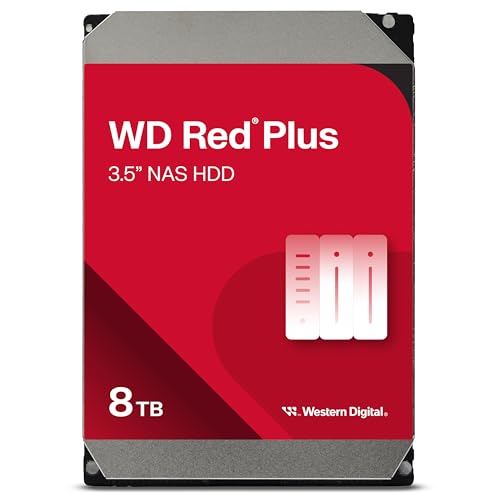 alt="WD Red Plus 8TB NAS Hard Drive"
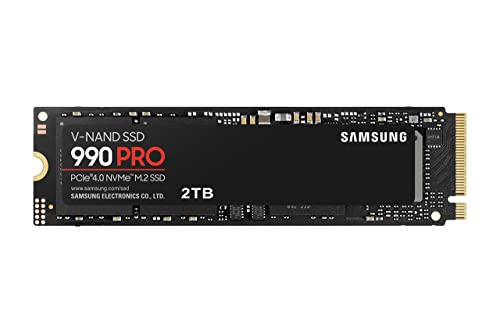 alt="Samsung 990 Pro 2TB NVMe SSD"
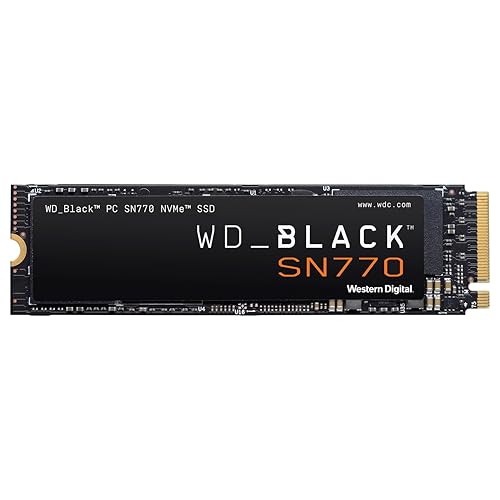 alt="Western Digital SN770 1TB NVMe SSD"