

If you are stuck because you think a homelab requires expensive servers, you are not alone. The truth is simpler: a homelab is a computer you control, running services you care about, and you can start with almost anything.
The goal of this post is to help you buy, or reuse, the right amount of hardware for what you want to learn, without accidentally building a noisy space heater that still feels slow.
You will walk away with:
- Three beginner-friendly hardware tiers you can pick today
- A practical way to choose CPU, RAM, and storage
- The basics of storage reliability, networking, and power planning
If you are brand new, start here:
The only question that matters: what are you running?
Before you look at specs, pick your first 2 to 4 jobs for the homelab. Hardware choices get easy when you match them to workloads.
Common beginner workloads:
- A few self-hosted apps
- A media server
- A small NAS
- Learning Linux and networking
- A couple of virtual machines (VMs)
If your list is everything, start smaller. Overbuilding is the most common way beginners waste money and end up with a loud box that still does not feel reliable.
For app ideas and service guides:
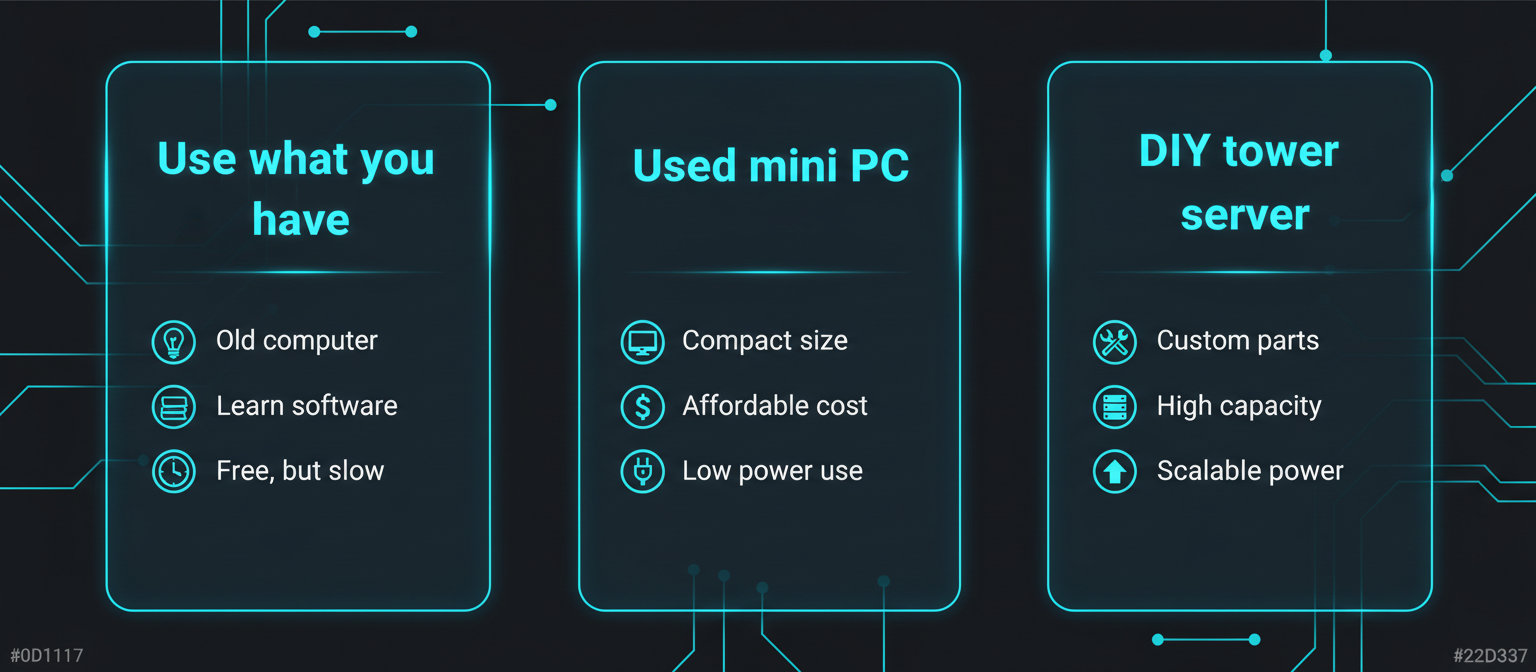
Hardware tiers: three paths that actually work
Tier 1: Use what you already have
This tier is underrated. A spare laptop, an old desktop, or a recent mini PC you already own is often enough for months of learning.
Good at:
- Running lightweight services in containers
- Learning Linux basics, SSH, updates, firewall rules
- Testing a hypervisor or a NAS OS before you commit
Not great at:
- Lots of storage drives
- Quiet 24/7 operation (depends on the machine)
- Redundant storage setups
Practical advice:
- Prefer wired Ethernet if possible. Wi-Fi adds weird reliability problems that look like server issues.
- If it is a laptop, disable sleep and watch thermals.
Hidden-gem detail: if you are reusing an old machine, the best upgrade is often a small SSD for the OS.
Tier 2: A used mini PC
If you want something quiet, power-efficient, and easy to live with 24/7, a used business-class mini PC is hard to beat.
What to look for:
- At least 1x gigabit Ethernet
- 16 GB RAM if you want VMs
- NVMe slot if possible
This tier is usually the sweet spot until you know you truly need lots of disks or PCIe expansion.
Tier 3: A DIY tower server
A tower build makes sense when you want:
- Multiple 3.5 inch drives for a NAS
- A lot of RAM
- PCIe expansion
- Easier future upgrades
Trade-offs:
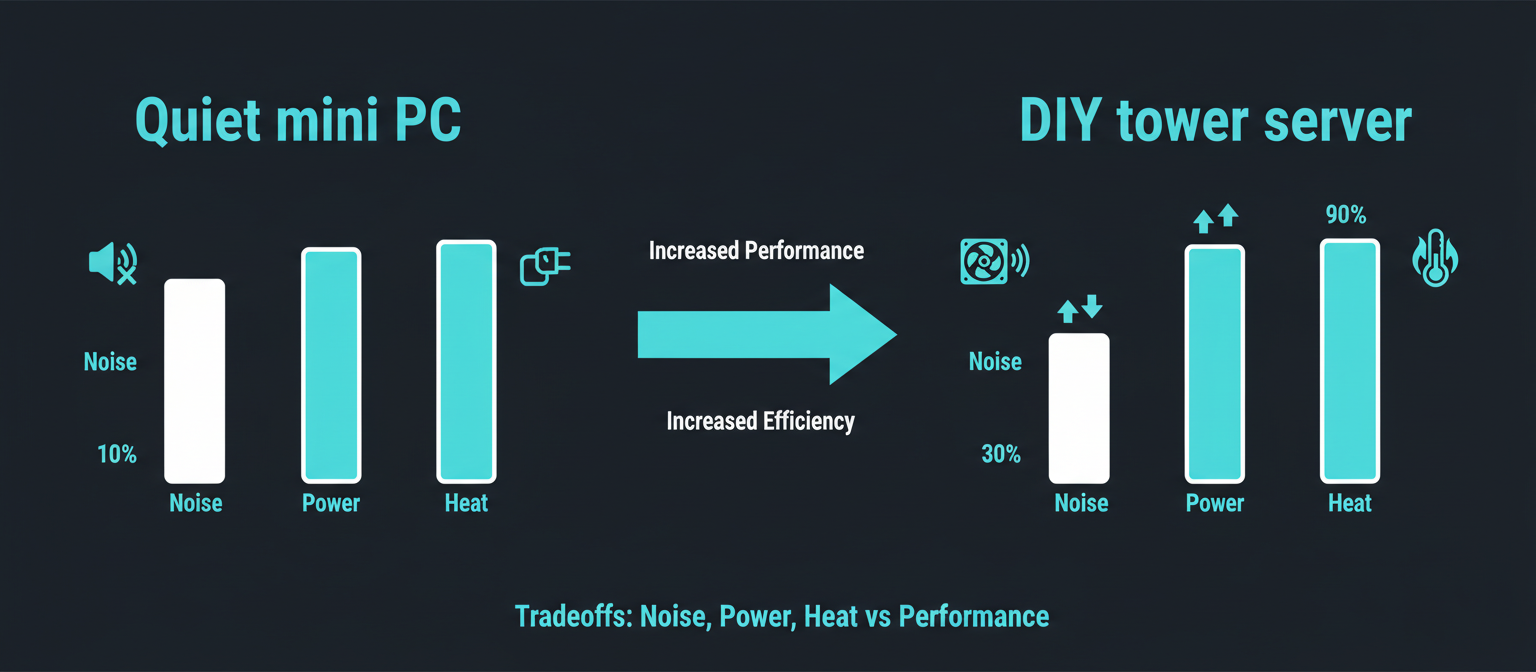
- Larger and often louder
- Higher idle power if chosen poorly
- More variables to troubleshoot
Choosing the core parts: CPU, RAM, and storage
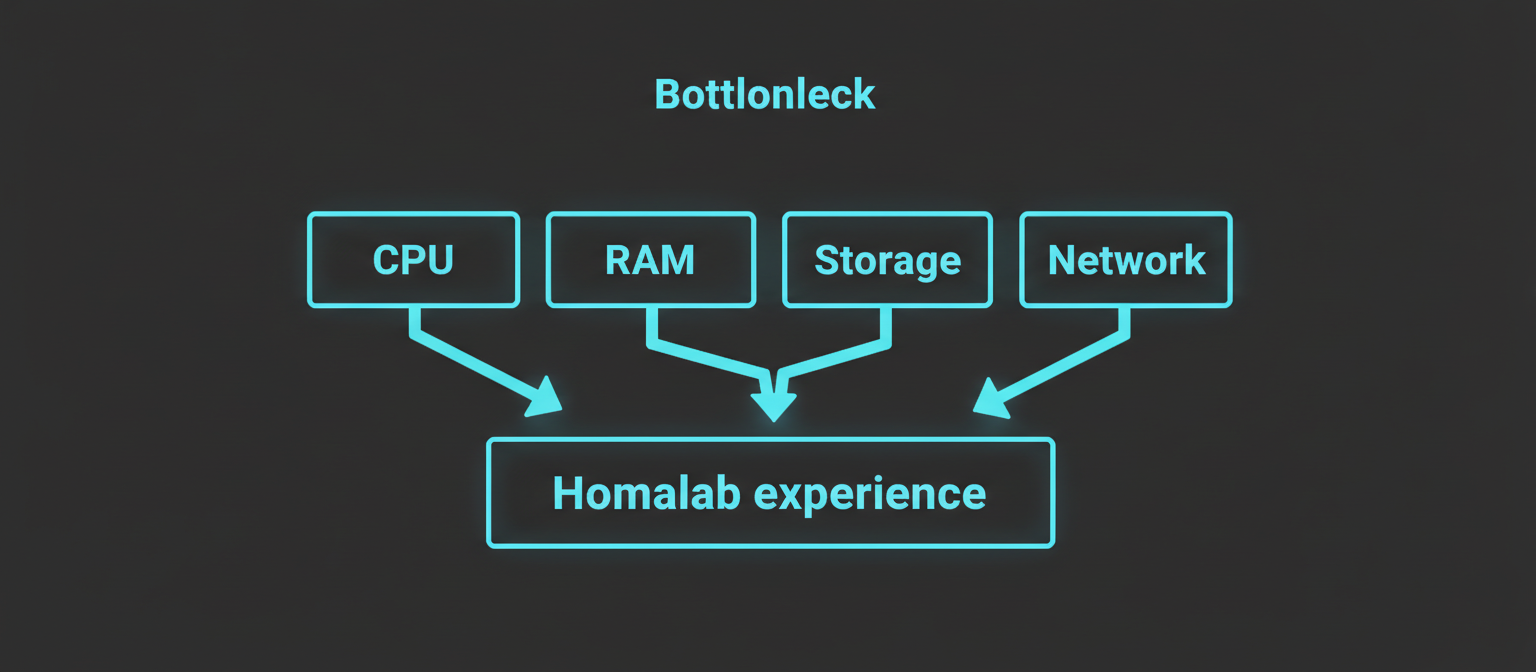
CPU: stop chasing cores, start matching features
If you want virtualization, make sure your CPU and platform support it. Proxmox calls out Intel VT or AMD-V, and for passthrough later VT-d or AMD-d.
- https://pve.proxmox.com/wiki/System_Requirements
- https://proxmox.com/en/products/proxmox-virtual-environment/requirements
RAM: the thing you will run out of first
Rules of thumb:
- 8 GB is fine for a few containers
- 16 GB is a comfortable starter for containers and 1 to 3 light VMs
- 32 GB gives you room to experiment
If you plan ZFS, Proxmox includes a planning rule of thumb around RAM per TB used.
Storage: separate fast from safe
Think of storage as two problems: 1) Where your OS and apps live 2) Where your data lives
SSD vs HDD: what to use, and where
SSDs are great for OS, apps, databases, and VMs. HDDs are great for bulk media and backups.
A simple layout:
- 1x SSD for OS and apps
- 1x or more HDDs for bulk data
- 1x external drive or another machine for backups
Storage reliability basics: SMART and why RAID is not backup
SMART helps you catch early warning signs.
If you plan to use ZFS, drive type matters. TrueNAS warns about SMR drives and generally recommends CMR for consistency.
- https://www.truenas.com/docs/hardware/notices/wdsmr/
- https://www.truenas.com/docs/core/13.0/gettingstarted/corehardwareguide/
Networking basics: Ethernet first
Use wired Ethernet for the homelab machine if you can.
If you want a solid reference for Ethernet standards:
Hidden-gem detail: many homelab problems are bad cables. Swap the cable before redesigning your network.
Power, noise, and heat: the stuff you feel every day
A homelab often runs 24/7, so idle efficiency matters. 80 PLUS defines minimum efficiency targets across multiple load points.
A simple shopping checklist
Core system:
- CPU: modern enough for your workload
- RAM: 16 GB if you plan VMs, 32 GB if you want room
- Boot and apps: 500 GB to 1 TB SSD
- Ethernet: at least 1x gigabit
Do not forget:
- A backup target
- Optional: a UPS for clean shutdowns
Common beginner mistakes
- Buying too much hardware before you know what you run
- Treating RAID as a backup
- Running everything on Wi-Fi
- Underestimating RAM for VMs
- Ignoring power and noise
FAQ
Do I need a server-grade machine to start a homelab?
No. A used mini PC or old desktop is enough for most beginner homelabs.
How much RAM do I really need?
8 to 16 GB works for containers. For multiple VMs, 16 GB is a practical starting point. 32 GB gives breathing room.
Is an SSD required?
Not required, but it makes everything smoother. If you can upgrade one thing, upgrade the OS drive to an SSD.
Should I buy HDDs for a NAS right away?
A router and one Ethernet cable is enough. Add a gigabit switch when you run out of ports.
Next steps: pick your OS
Next in the beginner series: Choosing a Homelab OS: Proxmox, TrueNAS, or Plain Linux
Until that is live, use the Homelab Basics hub:
Pick your tier and write down your first 3 services. If you can name what you are running, you can choose hardware and an OS without guessing.