The most useful reverse-proxy choice usually comes down to maintenance style rather than raw performance. A small homelab that values a visible UI and quick hostname changes will make a different choice from a Docker-heavy stack that wants configuration stored in labels or portable text files.
That is why this comparison treats recovery path, certificate workflow, and day-two editing overhead as first-class criteria. When the tools are all fast enough for ordinary homelab traffic, the bigger difference is how pleasant they are to operate after the first setup weekend is over.
This page helps a homelab operator choose between Nginx Proxy Manager, Caddy, and Traefik by matching each option to the management model and automation pattern it supports best.
If your immediate goal is trusted HTTPS rather than proxy selection, continue with the Homelab HTTPS setup guide before adding more routing complexity.
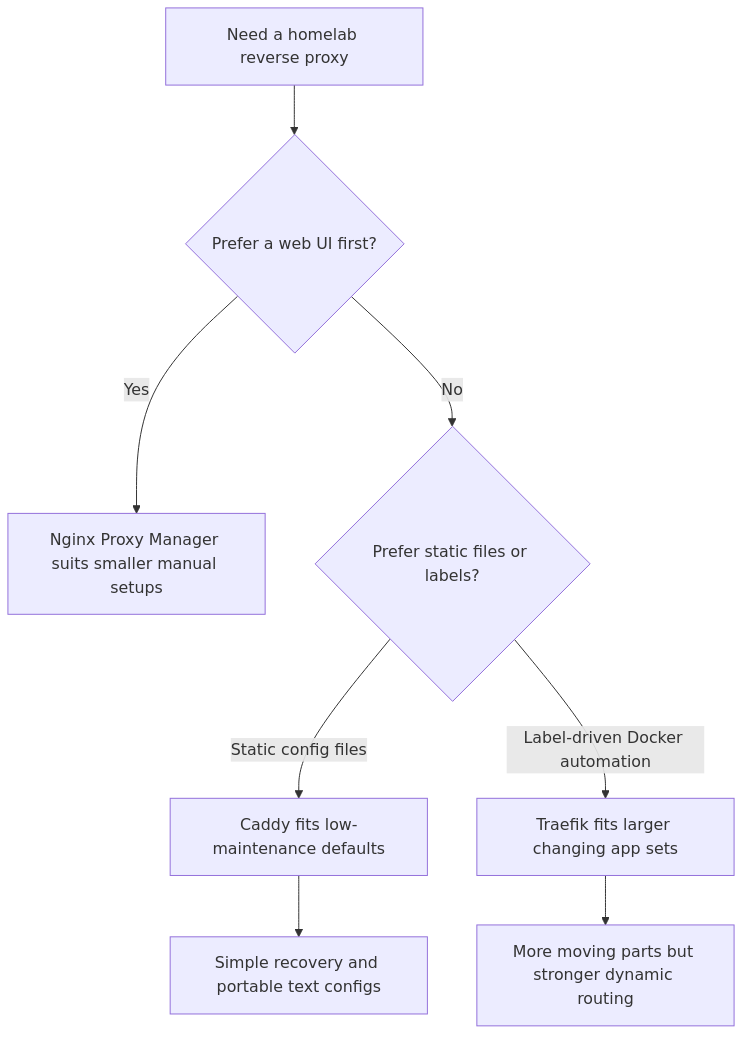
Reverse-proxy choice flow: start with your preferred management model, then decide whether UI simplicity, static config portability, or label-driven automation matters most.
Quick Comparison Table
Decision point
Nginx Proxy Manager
Caddy
Traefik
Best fit
Beginners who want a GUI
Most homelabs that want a clean long-term default
Docker-heavy labs that want auto-discovery
Configuration style
Web UI backed by a database
Caddyfile or JSON config
Docker labels plus static/dynamic config
Time to first working proxy
Fastest
Fast
Slowest upfront
Config portability
Medium - back up the app data carefully
Excellent - plain text config
Excellent - Compose labels and files
Automatic HTTPS
Easy through the UI
Best-in-class and very simple
Powerful but more involved
Local-only certificates
Possible, but less elegant
Excellent with local_certs
Possible, usually with extra planning
Docker automation
Manual
Mostly manual unless you add tooling
Best of the three
Dashboard
Full admin panel
None by default
Read-only dashboard
Low-RAM hosts
Acceptable, but heaviest of the three
Best
Middle
Recommendation
Best starter tool
Best overall choice
Best power-user automation choice
Recommendation by use case
transmission signup
article_topic // Caddy vs Nginx Proxy Manager vs Traefik
Don't leave without the setup notes.
Get practical homelab guides, failure logs, and beginner-friendly build notes in your inbox.
Enter your email address to receive the Homelab Addiction newsletter.
Weekly only. No spam. Unsubscribe anytime.
If you only need one paragraph, use this one:
Pick Nginx Proxy Manager if you are new, you want a web UI, and you value a five-minute win over clean configuration files.
Pick Caddy if you want the best balance of simplicity, portability, and automatic HTTPS without babysitting the stack.
Pick Traefik if your homelab revolves around Docker Compose, labels, and repeatable infrastructure-as-code workflows.
That recommendation is stronger than a generic feature checklist because it maps to how people actually regret these tools.
People rarely focus on tiny latency differences. The operational regrets are usually about:
Forgetting how a UI-based configuration was assembled.
Hand-editing another route every time a container is added.
Needing to rebuild the server quickly after a failure.
Wanting local certificates without several moving parts.
That is where the real differences live.
Where Nginx Proxy Manager Still Wins
Nginx Proxy Manager is still the easiest recommendation for a true beginner. If you want a dashboard, visible certificate workflow, and a clear way to add hostnames without touching config files, it is hard to beat.
That is also why our Nginx Proxy Manager setup guide remains a strong internal next step for people who just need one service working today.
Why people like it:
setup is quick
certificate issuance is approachable
access lists and proxy hosts are easy to visualize
you can hand it to a less terminal-happy admin and they can still operate it
Why people outgrow it:
the real config lives behind the GUI, which means more hidden state
backup discipline matters more because the app data becomes the source of truth
large batches of routing changes are slower than editing a file or templating Compose labels
the admin surface itself needs protection and operational attention
For a small homelab with a handful of services, that tradeoff is completely fair. For a lab you rebuild often, or a lab where you care about Git-backed repeatability, it starts to feel cramped.
Why Caddy fits low-maintenance labs
Caddy keeps winning the same way a good tool usually wins: it removes friction without hiding too much from you.
The official Caddy documentation is still one of the cleanest doc sets in this category, and the product philosophy shows up in the config. A small Caddyfile is readable at a glance. That matters more than people think.
A typical homelab Caddyfile stays understandable even months later:
1. Fast recovery - back up a text file and your data directory, then restore.
2. Version control that makes sense - changes are reviewable and diffable.
3. Low mental overhead - you can come back after a month and still understand what you built.
Caddy is also the cleanest answer for internal-only HTTPS. If your reverse proxy mostly fronts services on your LAN, the local_certs workflow is far less awkward than bolting together multiple external pieces. That is a real advantage for homelabbers who care more about clean internal UX than public exposure.
Why Traefik fits label-driven Docker labs
Traefik fits best once the problem shifts from reverse proxying a few apps to keeping a larger changing app set manageable without editing a central config file each time.
The Traefik docs are more demanding than Caddy's, but the payoff is real. Traefik shines when your routes live beside the service definitions that need them.
That label-driven model is excellent when:
you create and remove services frequently
you want Compose files to carry routing intent with the app
you care about repeatable rebuilds from code
you want middleware chains, dashboards, and richer Docker-native automation
The downside is not performance. The downside is that Traefik asks you to learn its vocabulary: routers, services, entrypoints, providers, middlewares, resolvers. Once that clicks, it is elegant. Before that, it feels like more reverse proxy than many people need.
There is also a practical security footnote here. Many Traefik Docker deployments mount the Docker socket directly. That is common, but it expands the blast radius if the proxy container is compromised. If you choose Traefik, plan around that risk instead of pretending it is not there.
Performance notes that matter less than maintenance overhead
The historical measurements in the earlier comparison support the same broad conclusion, but they are not a fresh benchmark. Treat the figures below as directional rather than as current lab results.
Proxy
Idle RAM
RAM with 12 services
Idle CPU
Setup time to first proxy
Nginx Proxy Manager
~85 MB
~110 MB
~0.4%
~5 minutes
Caddy
~25 MB
~32 MB
~0.2%
~10 minutes
Traefik
~55 MB
~78 MB
~0.3%
~45 minutes
How those numbers translate into an operating choice:
On a mini PC, NUC, or normal VM with plenty of headroom, treat the figures as operational context, not buying criteria.
On a Raspberry Pi or deliberately tiny low-power box, Caddy's smaller footprint matters more.
On a lab where new services show up every week, the config model matters more than the RAM delta.
The article that was cannibalizing this topic leaned harder on general beginner framing. The better 2026 angle is this: reverse proxy choice is mostly a maintenance decision, not a performance decision.
The Recovery and Portability Difference Is Bigger Than the Feature Difference
This is the most important improvement from the refresh because it answers the thing people usually learn too late.
When your host dies, or you migrate to a new VM, or you finally clean up your Docker host, which proxy do you rebuild fastest and with the fewest surprises?
Nginx Proxy Manager
You must treat the application data as critical state. If your backup is sloppy, your reverse proxy rebuild is sloppy. It is not unportable, but it is less transparent.
Caddy
Your config is readable text and your operating model is simple. Rebuilds are boring in the best way.
Traefik
If you already manage the stack well in Compose, rebuilds are excellent because the routes follow the application definitions. If your labels are scattered and inconsistent, rebuilds are still possible but harder to reason about.
If your homelab goal is a clean VM rebuild after failure, Caddy and Traefik both have an advantage over Nginx Proxy Manager. Which one wins depends on whether you want central text config or per-service labels.
From the lab
Security and Blast Radius
No reverse proxy fixes bad exposure decisions for you.
A stronger decision framework looks like this:
keep admin surfaces off the public internet when possible
use a VPN or identity-aware access for private apps
put real thought into who can reach the dashboard or admin UI
back up config and certificates before you need them
standardize hostnames and networks so troubleshooting is predictable
This is also why reverse proxy choice is tied to your broader remote-access model. If you are still deciding whether to expose services directly, use tunnels, or stay fully private behind a VPN, read Cloudflare Tunnel vs VPN vs Port Forwarding. The wrong remote-access decision creates more pain than the wrong proxy.
Who Should Pick Each One
Pick Nginx Proxy Manager if...
you are new to reverse proxies
you want a UI-first workflow
you run a small number of services
you value immediate setup speed over long-term elegance
Pick Caddy if...
you want the best default answer for a typical homelab
you prefer readable config over dashboards
you want automatic HTTPS with minimal ceremony
you care about portability and boring restores
Pick Traefik if...
your lab is Docker-centric and changing fast
you want routes defined with the services themselves
you do not mind a steeper learning curve
you want more automation and middleware depth than the other two provide
Migration Advice if You Already Picked the Wrong One
The good news is that reverse proxy migrations are usually less dramatic than people expect.
1. Inventory your current hostnames and upstream ports.
2. Build the replacement proxy on alternate ports first.
3. Test every route before cutover.
4. Back up certificates and config before you flip anything.
5. Keep the old stack intact for a short rollback window.
If you are moving from Nginx Proxy Manager to a config-as-code setup, that migration usually teaches you something useful about your naming standards, your Docker networks, and how much undocumented state you were carrying.
Recommended Hardware
A reverse proxy is lightweight. You do not need to buy a dedicated monster box for it, but a few common homelab upgrades make the whole stack nicer.
Hardware
Why it makes sense
Link
Raspberry Pi 5 (8GB)
Great low-power host for a small reverse proxy stack or a dedicated utility node
If you want the cleanest answer for the exact search intent behind this topic, here it is:
Best reverse proxy for beginners: Nginx Proxy Manager
Best reverse proxy for most homelabs: Caddy
Best reverse proxy for Docker automation: Traefik
For many small homelabs, Caddy remains the cleanest default.
It is the best balance of speed, readability, restore simplicity, and low operational drag. Nginx Proxy Manager is still the right tool when someone needs a GUI and wants success in one sitting. Traefik is still the strongest option when the lab itself is already structured like code and you want the routing layer to move with your containers.
That is the whole decision. Pick the tool that matches your maintenance style, not the one with the most impressive-looking feature list.
Caddy vs Nginx Proxy Manager: what changes in practice?
Caddy usually wins when you want fewer moving parts, simple text configuration, and an easier recovery story after a rebuild. Nginx Proxy Manager still wins when the operator values a visible UI and quick hostname edits more than config portability.
Caddy vs Traefik: when should you choose one over the other?
Caddy is usually the better fit for smaller homelabs that want low-friction HTTPS and understandable configs. Traefik is the stronger fit when the stack is already label-driven, Docker-heavy, and comfortable with more automation logic living in the proxy layer.
If your next step is one certificate across many subdomains, read Wildcard Certificates for Homelabs. It explains when DNS challenge is worth the extra moving parts and how that choice changes between Caddy and Nginx Proxy Manager.
Frequently Asked Questions
Which reverse proxy is best for most homelabs?
Caddy is the best default for most homelabs because it keeps configuration simple, backups straightforward, and HTTPS easy without pushing you into a GUI-only workflow.
Is Nginx Proxy Manager better for beginners than Caddy or Traefik?
Usually yes. If you want the shortest path to a working reverse proxy and prefer clicking through a dashboard, Nginx Proxy Manager is the easiest place to start.
When should you choose Traefik over Caddy?
Choose Traefik when your lab is very Docker-centric and you want routing to follow your service definitions automatically through labels and middleware.
Does reverse proxy performance matter much in a homelab?
Not usually. Setup model, restore speed, and day-2 maintenance matter more than tiny differences in memory or latency for most self-hosted environments.
And if you already know you are going to keep exposing more services over time, make documentation part of the project early. Reverse proxies stay pleasant when hostnames, upstream ports, and access policy are documented before the stack gets messy.