

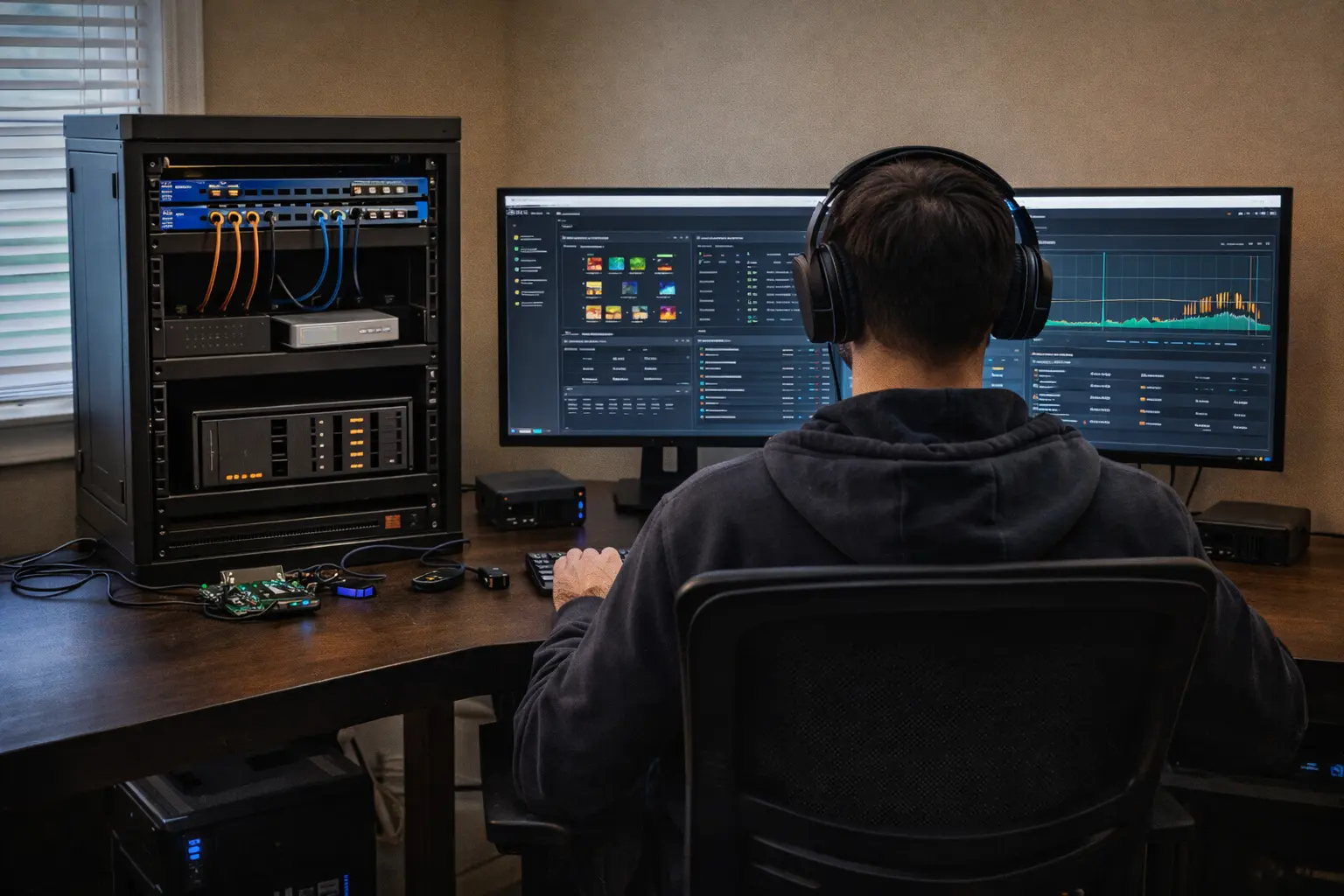
If you’ve ever wanted to try Linux, host your own services, or understand what your router is actually doing, you’ve already hit the same problem: you don’t want to break your main laptop or your home Wi‑Fi.
A home lab fixes that. It gives you a safe place to experiment, learn, and build genuinely useful stuff for your own life.
In this post you’ll walk away with:
- A clear definition of a homelab (in normal human language)
- Beginner-friendly projects you can do this week
- A realistic view of what you need and what it costs
- Safety basics so you don’t accidentally expose your network to the Internet
Related reading on HomelabAddiction:
- Start here: https://homelabaddiction.com/start-here/
- Homelab basics hub: https://homelabaddiction.com/homelab-basics/
- Guides: https://homelabaddiction.com/guides/
- Self-hosting: https://homelabaddiction.com/self-hosting/
- Tools we use: https://homelabaddiction.com/tools/
What a homelab is (and what it is not)
A home lab is a small setup where you run and test tech the way you would on “real” infrastructure — but at home, on your own terms.
A good mental model is: a practice range for computers and networks.
What it usually includes:
- One or more machines you can wipe/reinstall without stress
- A way to connect to your home network (Ethernet or Wi‑Fi)
- Software to run services, containers, or virtual machines
- Basic habits for backups and security
What it is *not*:
- A loud rack of enterprise servers (unless you want that life)
- A requirement to learn everything at once
- A single “correct” architecture
A beginner homelab succeeds when it is:
- Easy to reset when you mess up
- Cheap enough that you don’t feel guilty using it
- Separated enough that it doesn’t take down the household internet
Hidden-gem detail that saves pain: treat your lab as disposable. If every experiment creates a fragile snowflake server you’re afraid to reboot, you’ll stop learning.
What you can do with a homelab (beginner projects that actually matter)
You don’t need a grand plan. Pick one useful thing, ship it, then grow.
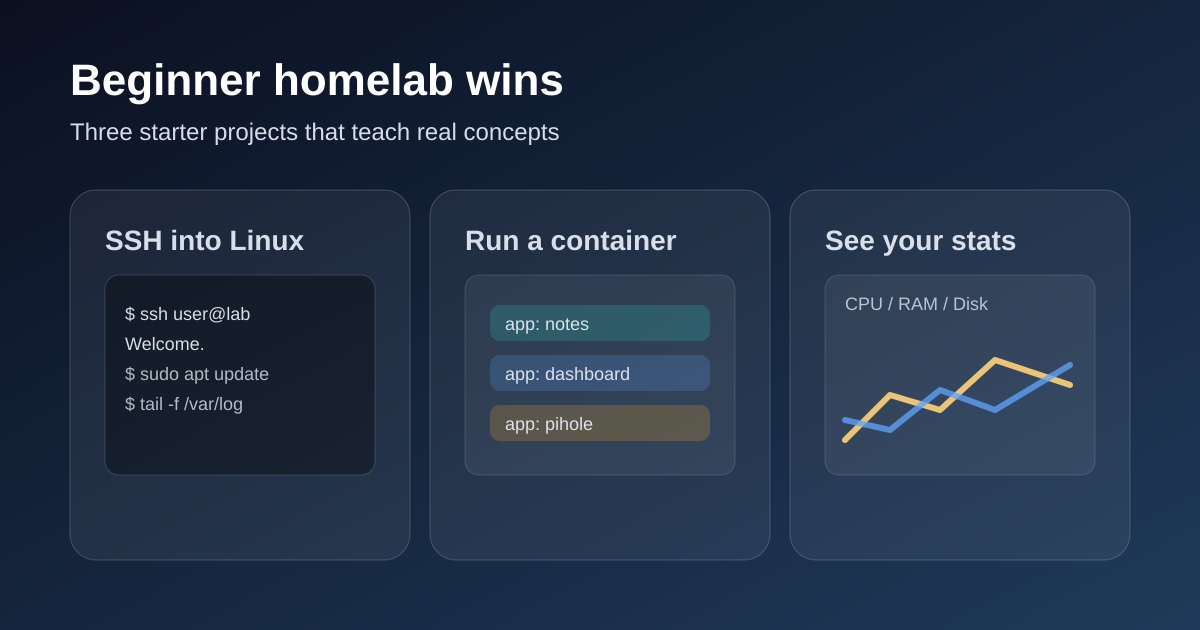
1) Learn Linux without fear
Set up a Linux server and get comfortable with:
- SSH (logging in remotely)
- Users, permissions, and updates
- Reading logs when something fails
2) Run a home dashboard and basic monitoring
Even a simple “is it up?” view teaches the right habit: observe systems, don’t guess.
3) Host a shared family file drop (carefully)
This teaches the core ideas behind NAS/home storage:
- Permissions and separate accounts
- Shared folders
- Backups that don’t depend on one laptop
Important note: a file server is not a backup. (We’ll hit backups again below.)
4) Block ads and junk at the network level
A classic first win is a DNS-based blocker (Pi-hole is the common entry point). It runs in one place and protects your whole network.
- Pi-hole: https://pi-hole.net/
5) Try containers for the first time
Containers are a clean way to run apps without “installing random stuff” all over your OS.
A beginner-friendly definition from Docker: containers are isolated processes you can build, ship, and run consistently across environments.
- What is a container? https://docs.docker.com/get-started/docker-concepts/the-basics/what-is-a-container/
6) Build a test “guest” network that’s isolated
If your router supports guest networks, that’s your first step toward safer experiments.
7) Practice backups and restores (the skill most people skip)
A simple rule beginners can apply immediately is 3‑2‑1 backups (three copies, two different media, one off-site).
- 3‑2‑1 explained: https://www.backblaze.com/blog/the-3-2-1-backup-strategy/
8) Learn what updates and patching really feel like
A homelab is where you learn “maintenance beats emergency repair.”
If you want a simple path: start with Linux + one service you personally want. Then add containers. Then add monitoring.
Core concepts you’ll hear a lot (quick, gentle explanations)
Private IPs and your home network
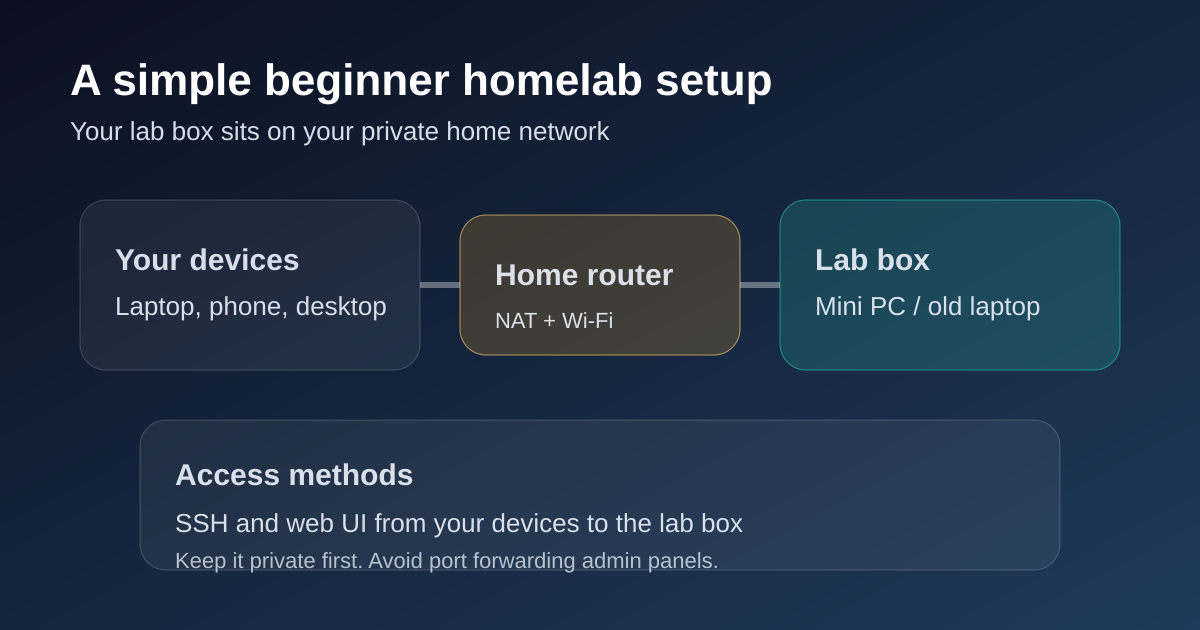
Most homelabs live on private IPs behind your router’s NAT. That’s why you can experiment without making things public.
- Private address ranges are defined in RFC1918: https://datatracker.ietf.org/doc/html/rfc1918
- A friendly summary (pfSense/Netgate docs): https://docs.netgate.com/pfsense/en/latest/network/addresses.html
VMs vs containers (60-second mental model)
- VMs: each workload gets a full OS (heavier, but very isolated).
- Containers: isolated processes sharing the host OS kernel (lighter, fast to deploy).
Docker’s docs explain this tradeoff clearly: https://docs.docker.com/get-started/docker-concepts/the-basics/what-is-a-container/
A “control panel” example: Proxmox
If you hear people say “run a hypervisor and create VMs,” Proxmox VE is a common homelab-friendly option because it manages both KVM virtual machines and LXC containers in one web UI.
- Proxmox VE overview: https://www.proxmox.com/en/products/proxmox-virtual-environment/overview
What you need to start (keep it simple)
You can start with surprisingly little. The goal is a stable “first box” you can experiment on.
Hardware (minimum viable lab)
- One machine: old desktop, used mini PC, old laptop, or a small server
- Storage: enough for your OS + whatever you want to test
- Networking: Ethernet if possible (removes a whole category of weirdness)
- Power + space: somewhere it can run quietly and safely
If you’re starting from zero, a quiet used mini PC is often the best beginner move.
Software (high level)
You have three common starting styles:
- Bare metal Linux + a couple services
- Linux + containers
- Virtualization (multiple VMs on one box)
For the deep “what specs matter and what to buy,” go next:
- Hardware basics: https://homelabaddiction.com/homelab-basics/
Realistic costs (budget tiers you can actually plan around)
Tier 1: “Use what you have”
Pros: free learning. Trade-off: older hardware can be noisy/power-hungry.
Tier 2: “Used mini PC” (best beginner balance)
Pros: quiet, low power, reliable. Trade-off: limited expansion.
Tier 3: “Purpose-built server” (only when you know what you need)
Pros: easier storage + virtualization growth. Trade-off: costs climb quickly.
Practical rule: don’t buy “future proof” hardware for a beginner lab. Buy for the next project you’ll do in the next 30–90 days.
Common beginner mistakes (and how to avoid them)
Mistake 1: Trying to do everything at once
Fix: pick one outcome and finish it, then add one concept at a time.
Mistake 2: No backups, then surprise data loss
Fix: use the 3‑2‑1 mindset early. (A second disk in the same machine is not a backup.)
Mistake 3: Building a “pet” server you’re afraid to touch
Fix: keep notes. A simple README per service is enough.
Mistake 4: Putting random services on your main network with no plan
Fix: start simple. Later, learn isolation and segmentation.
- Networking category: https://homelabaddiction.com/category/networking/
Mistake 5: Buying loud enterprise gear because it looks “real”
Fix: start quiet and efficient. Upgrade when you hit real limits.
Safety basics (seriously, read this)
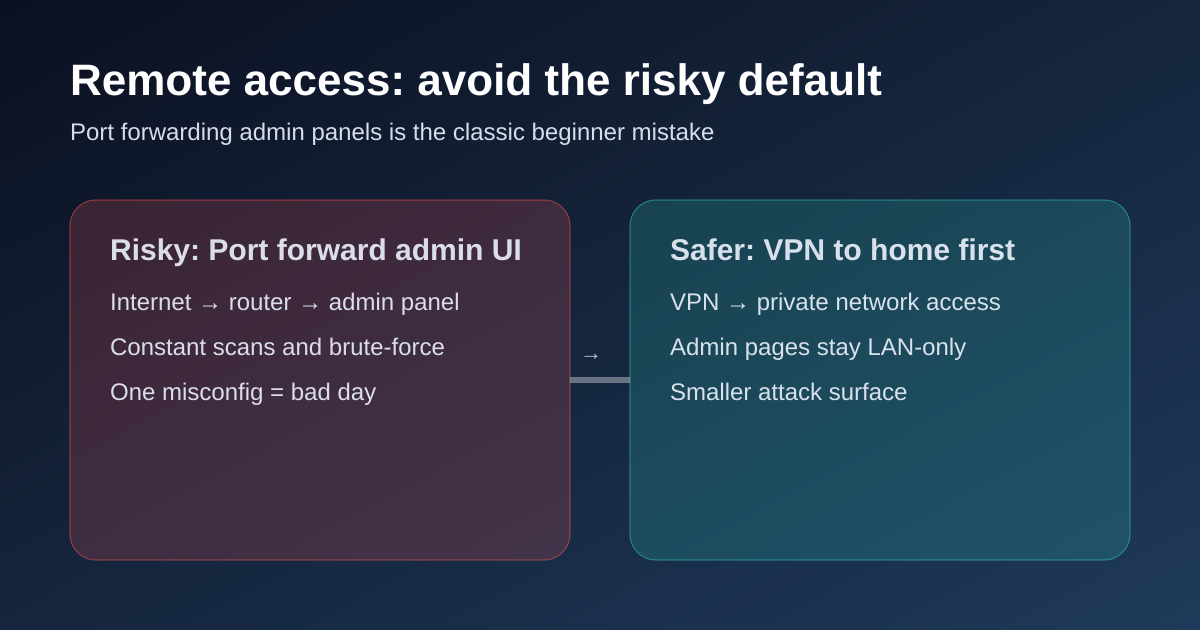
Do not expose admin panels to the Internet
Don’t port-forward your router to:
- NAS dashboards
- Hypervisor management pages
- Docker management UIs
- Anything with an admin login screen
If you need remote access, the safer pattern is:
- Use a VPN you control (then access services like you’re at home)
- Or use a secure tunnel with strong authentication
Keep the boring security basics boring
- Use strong unique passwords + a password manager
- Keep your install list small enough to maintain
- Update regularly
Two good “mindset” references:
- OWASP Top 10 (common web risks): https://owasp.org/www-project-top-ten/
- NIST Cybersecurity Framework (high-level approach): https://www.nist.gov/cyberframework
Next steps (and where to go next)
Your first action today:
- Pick a spare machine.
- Decide whether your first goal is “learn Linux” or “run one useful service.”
- Write what “done” means in one sentence.
Then continue here:
- Homelab basics: https://homelabaddiction.com/homelab-basics/
- Start here: https://homelabaddiction.com/start-here/
FAQ
Do I need to know Linux to start a homelab?
No. A homelab is a great way to learn Linux because you can experiment without risking your daily computer.
Can I start with just one machine?
Yes. One machine is enough for a beginner lab. You can add more later if you outgrow it.
Is it expensive to run a homelab 24/7?
It depends on your hardware and local electricity prices. A small, efficient box costs far less to run than older enterprise gear.
Should I open ports on my router so I can access my homelab remotely?
Not for admin panels. The safer approach is to use a VPN and access your services over that connection.
What is the best first project?
Pick one thing you’ll actually use (Pi-hole, a single containerized service, or learning SSH). Finishing one project teaches more than starting five.
Do I need to know Linux to start a homelab?
No. A homelab is a great way to learn Linux because you can experiment without risking your daily computer.
Can I start with just one machine?
Yes. One machine is enough for a beginner lab. You can add more later if you outgrow it.
Is it expensive to run a homelab 24/7?
It depends on your hardware and local electricity prices. A small, efficient box costs far less to run than older enterprise gear.
Should I open ports on my router so I can access my homelab remotely?
Not for admin panels. The safer approach is to use a VPN and access your services over that connection.
What is the best first project?
Pick one thing you’ll actually use (Pi-hole, a single containerized service, or learning SSH). Finishing one project teaches more than starting five.