Docker Daemon Proxy Configuration: Fix Pulls, Builds, and Container Egress Without Guesswork
Fix Docker proxy issues by separating daemon proxy settings, build and client defaults, and container egress rules so pulls, builds, and private-network traffic each use the right path.
Disclosure: This article may contain affiliate links. If you purchase through these links, HomelabAddiction may earn a commission at no additional cost to you.
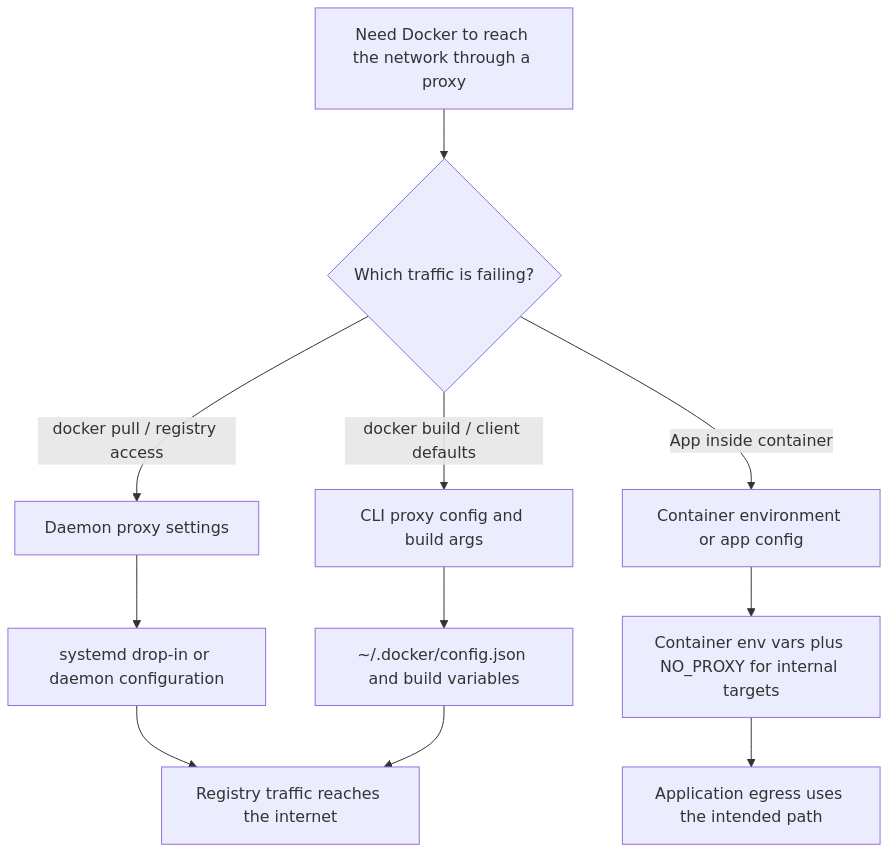
Most Docker proxy failures come from configuring only one scope. The daemon, the Docker client or build context, and the applications inside containers can each need their own proxy path.
This page helps homelab operators fix Docker proxy issues by separating those scopes first, then applying the smallest working configuration for pulls, builds, and container egress instead of changing random files until the error disappears.
For most Linux hosts, the practical path is to confirm whether the daemon itself needs a proxy, whether build and client defaults need separate variables, and whether container workloads should bypass the proxy for private subnets and internal registries.
Key Takeaways
docker pull, docker build, and application traffic inside containers do not all read the same proxy settings.
Daemon-level proxy settings usually solve registry reachability, while client defaults and build variables handle additional cases.
NO_PROXY should explicitly cover localhost, RFC1918 ranges, internal DNS names, and any private registry endpoints.
Reverse proxy publishing is a separate problem from outbound HTTP or HTTPS proxy configuration.
Docker proxy scope map: daemon traffic, client or build defaults, and in-container application egress often need different settings even on the same host.
First, the proxy misunderstanding that causes half the mess
There are two proxy conversations people keep jamming together:
Outbound HTTP/HTTPS proxy - Docker uses this to reach the internet through a filtered network.
Inbound reverse proxy - Nginx Proxy Manager, Caddy, or Traefik routes traffic to your apps.
package installs and downloads during docker build
build args / client proxy config
Runtime container traffic
apps inside containers reaching outside services
env vars or Compose environment
That split matters.
If you only configure the daemon, your image pulls may work while your builds still fail.
If you only configure the client, a new container may inherit proxy variables correctly while the host still cannot pull from Docker Hub.
This is why proxy fixes feel random. They are not random. They are just annoyingly specific.
When you actually need this in a homelab
People hear “corporate proxy” and assume it has nothing to do with homelabs. Cute idea.
You still care about this if your Docker host sits behind:
a school or office connection with outbound filtering
a parent network or shared building network
a security appliance doing forced proxying or allowlists
a lab environment where outbound traffic is intentionally constrained
a caching proxy you use to speed up repeated downloads
I have also seen people use this pattern in segmented labs where a utility VM acts as the egress choke point. It is not common, but it is absolutely a thing.
A practical Linux setup path
For a normal Linux Docker Engine host, I recommend this order:
set the daemon proxy in /etc/docker/daemon.json
add a systemd drop-in if you need startup-environment clarity or your environment expects it
configure ~/.docker/config.json if builds and new containers also need proxy defaults
verify each layer separately instead of assuming one success means the rest work
That is the least confusing path I have found.
Step 1 - Configure the Docker daemon
If your main pain is docker pull failing, start here.
Get practical homelab guides, failure logs, and beginner-friendly build notes in your inbox.
Enter your email address to receive the Homelab Addiction newsletter.
Weekly only. No spam. Unsubscribe anytime.
sudo systemctl restart docker
Then verify what the daemon thinks it knows:
docker info | grep -i proxy
If you get nothing useful back, do not assume the file worked. Assume it did not.
Step 2 - Add a systemd drop-in when the host needs it
I prefer daemon.json as the primary config, but in the real world I still end up using a systemd drop-in often.
Why? Because it makes the daemon startup environment explicit, which helps when you are troubleshooting on a box that has been “helpfully” configured by three different past versions of yourself.
That matters more than people expect. If app talks to db or redis on the same Docker network, you do not want that traffic trying to bounce through an outbound proxy like it just discovered performance art.
A bad NO_PROXY list creates the stupidest failures.
Your container can reach the internet fine, but suddenly fails to talk to minio, your internal registry, or a package mirror on the LAN because it tries to send local traffic through the upstream proxy. That is how you end up muttering at the screen while a container claims your NAS is on the internet.
A full verification sequence I actually use
After configuration, I test in this order:
1. Confirm the unit environment
systemctl show --property=Environment docker
2. Confirm what Docker reports
docker info | grep -i proxy
3. Test a simple pull
docker pull alpine:latest
4. Test a runtime container
docker run --rm alpine sh -c 'apk add --no-cache curl >/dev/null && curl -I https://example.com'
5. Test a build
docker build -t proxy-build-test .
If one of those fails, you now know which layer failed.
That narrows the problem from “Docker proxy configuration is broken” to something fixable in one pass.
Security notes people skip
Proxy settings often contain credentials.
That means:
do not commit authenticated proxy URLs into Git
do not paste them into screenshots you plan to share
remember container environment variables are not secret storage
avoid hard-coding sensitive values directly into Dockerfiles
When a proxy setup fails, the error usually tells you which layer is wrong if you stop reading it like a crime scene and start reading it like a scope problem.
Symptom 1 - docker pull times out or cannot resolve the registry
If docker pull alpine fails before a container ever starts, focus on the daemon first.
Checks I run:
systemctl show --property=Environment docker
docker info | grep -i proxy
sudo journalctl -u docker -n 100 --no-pager
What I am looking for:
missing or malformed environment variables in the unit
a typo in daemon.json
a proxy URL with special characters that were not escaped correctly
a private registry hostname that should have been excluded via NO_PROXY
On Linux hosts using systemd, special characters in authenticated proxy URLs can be annoying. Docker's docs note that some values need escaping in systemd unit files. If you skipped that detail, the value may look fine in the file and still be wrong at runtime.
Symptom 2 - docker pull works, but docker build fails during package installs
This one is common.
The daemon can reach Docker Hub, but build steps such as apt-get update, apk add, pip install, or curl inside the build context still need usable proxy values.
My quick test is a tiny Dockerfile that does nothing interesting except try to leave the network:
FROM alpine:3.22
RUN apk add --no-cache curl
RUN curl -I https://example.com
If that build fails, I check whether:
~/.docker/config.json exists for the user running the build
proxy variables are reaching BuildKit or classic builds as expected
I need explicit --build-arg flags for the toolchain in question
NO_PROXY excludes internal mirrors if I am pulling from local package caches
This is one reason I tell people to keep a tiny “network sanity” Dockerfile around. It is faster than pretending your application image is the right debugging surface.
Symptom 3 - build works, but the running container cannot reach the internet
That pushes me toward runtime environment handling.
Test the container directly:
docker run --rm alpine sh -c 'env | grep -i _PROXY'
docker run --rm alpine sh -c 'apk add --no-cache curl >/dev/null && curl -I https://example.com'
If the proxy variables are missing, the issue is usually one of these:
no client proxy config in ~/.docker/config.json
Compose file omitted the required environment values
container was created before the proxy config changed
Remember that old containers do not magically inherit new settings. Containers are many things. Telepathic is not one of them.
Symptom 4 - the container can reach the internet, but fails against local services
This is almost always a NO_PROXY problem.
If your app cannot reach db, redis, minio, a NAS hostname, or an internal registry, expand your exclusions and test again. I often add local service names one by one while validating with curl, wget, or the app's own health check.
The reason I keep repeating this is simple: half of proxy troubleshooting is not “how do I send traffic through the proxy?” It is “how do I stop obviously local traffic from doing something absurd?”
From the lab
Rootless Docker and Docker Desktop caveats
These are the two paths that break copy-paste guides fastest.
Rootless Docker
If you are using rootless Docker, the systemd paths are different because Docker runs as a user service instead of a system service.
That means the drop-in path changes to something like:
If you use rootless mode and follow a system-wide /etc/systemd/system/docker.service.d/ guide, it will not work. The file can be perfectly written and still be attached to the wrong service. That is one of my least favorite Linux genres because it looks correct until you notice nothing changed.
Docker Desktop
Docker Desktop deserves its own paragraph because it quietly ignores Linux assumptions.
If you are on Docker Desktop, the official guidance is to configure proxies in the Desktop settings UI, not by assuming Linux Engine behavior maps over cleanly. That matters for people who bounce between a Windows laptop and a Linux homelab box and expect identical rules.
And then I keep the four verification commands right below it:
systemctl show --property=Environment docker
docker info | grep -i proxy
docker pull alpine:latest
docker run --rm alpine sh -c 'env | grep -i _PROXY'
It is not elegant. It is repeatable. I have learned to value repeatable more than elegant.
Common mistakes
1. Fixing the daemon and assuming builds will work
They might. They also might not.
Build-time behavior often depends on client-side proxy config or explicit build args.
2. Forgetting daemon-reload
Systemd is not psychic.
If you changed a drop-in file, reload systemd before restarting Docker.
3. Using the same advice on Docker Desktop and Linux Engine
Desktop has its own behavior. Read the official Docker Desktop proxy docs before copying Linux-only patterns over.
4. Writing a weak NO_PROXY list
This is the main source of “almost working” setups.
If internal traffic is still trying to leave through the proxy, your exclusions are incomplete.
5. Confusing outbound proxy config with reverse proxy publishing
If your actual issue is HTTPS for a self-hosted app, you probably want Nginx Proxy Manager or a reverse proxy decision guide instead.
Recommended gear for a reliable Docker host
You do not need to buy hardware to fix proxy settings. I am obligated to say that because it is true.
You may, however, want better hardware if your Docker host currently lives on a mystery box with one flaky NIC and a power brick that feels warm enough to cook opinions.
Those are not proxy fixes. They are quality-of-life improvements for the kind of person who will absolutely be debugging this at an inconvenient time.
My opinionated recommendation
If you are running Docker Engine on Linux, do this:
put the daemon proxy in daemon.json
use a systemd drop-in when you need startup-environment clarity
use ~/.docker/config.json for new containers and build defaults
be aggressive about NO_PROXY
verify every layer independently
That is the setup I actually trust.
The minimalist “I exported HTTP_PROXY once in my shell and now I hope for the best” approach does work sometimes. So does driving with the check engine light on. Neither is a strategy.
FAQ
Do I need both daemon.json and a systemd drop-in?
Not always.
If daemon.json alone handles your daemon traffic cleanly, you may be fine. I still like the drop-in on Linux hosts where I want startup behavior to be explicit and easy to inspect.
Why does docker pull work but docker build still fail?
Because the daemon and build/runtime layers are not identical.
The daemon can reach the registry while the build process still lacks the right proxy values or exclusions.
Does ~/.docker/config.json affect existing containers?
No.
It applies to new containers and builds. Existing containers will not magically pick up the new settings.
What should go in NO_PROXY for a homelab?
At minimum: localhost, loopback, your private subnets, local DNS suffixes, and any internal services or registries containers should reach directly.
If local traffic still tries to leave through the proxy, keep expanding the list until it stops being ridiculous.
What if I am using Docker Desktop?
Read Docker's Desktop proxy documentation and use the Desktop settings UI.
Do not assume a Linux Engine guide maps cleanly onto Desktop behavior.
What to learn next
If this host is part of a bigger lab, the next skills that usually matter are:
If nothing else, remember this: when Docker proxy config breaks, stop asking “is Docker broken?” and start asking “which layer am I actually configuring?”
That question fixes more labs than another hour of random edits ever will.
This retained rewrite was refreshed against Docker documentation so the guidance is tied to configuration scope and behavior instead of unsupported personal troubleshooting stories.