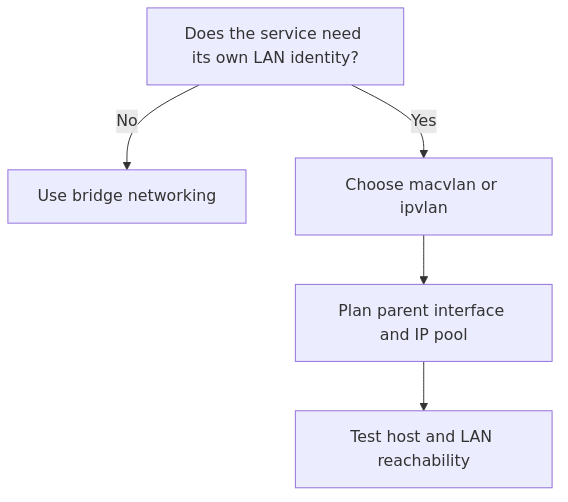
Macvlan is a specialized Docker network driver, not a default replacement for bridge networking. Docker’s documentation highlights the need for a parent interface and explains the distinct network identity presented to the LAN.
The practical decision is whether the service truly needs a first-class LAN address. If host-to-container reachability, simpler routing, or lower operational overhead matters more, bridge networking or ipvlan may be a better fit.
Decision flow grounded in the cited documentation.
Key Takeaways
Choose macvlan for a real LAN-identity requirement, not merely because an application has a web UI.
Plan the parent NIC, VLAN, IP allocation, and host-reachability workaround before deployment.
Prefer bridge or ipvlan when the service does not need to appear as a separate Ethernet endpoint.
When macvlan fits a homelab
I do not put every container on macvlan.
That way lies chaos, too many IP reservations, and the slow realization that you rebuilt a VM habit inside Docker because it felt emotionally safer.
Macvlan fits when a container needs one or more of these:
Its own stable LAN IP
Broadcast or multicast visibility on the subnet
Clean placement on a dedicated VLAN
Network behavior that is awkward behind published ports
Good candidates include:
Pi-hole or AdGuard Home when you want them to behave like a first-class DNS host
Home Assistant when LAN discovery matters
Network scanners or monitoring tools that need to originate from a real subnet
Legacy apps that expect to be directly attached to the network
Bad candidates include:
Reverse proxies
Most web apps
Dashboards
Internal databases
Anything that works perfectly well behind bridge networking and a published port
If bridge mode works, use bridge mode. Your future self will not accuse you of cowardice.
When macvlan is the wrong tool
Here is the thing people do not like hearing: if your real goal is just "I want to open this app in a browser from another machine," macvlan is usually overkill.
A custom bridge network plus a reverse proxy is simpler, easier to secure, and easier to back up. It also avoids the host-isolation problem that bites nearly everyone the first time.
The mistake I made: I once put a reverse proxy on macvlan because I thought every service should have its own IP. That bought me extra DHCP reservations, uglier firewall rules, and exactly zero practical benefit.
If you are exposing normal web apps, stay with bridge networking unless you have a very specific reason not to.
Macvlan requirements before you touch Docker
Macvlan is not just a Docker feature. It depends on the host and the network behaving correctly.
Check these first:
Your Docker host must be Linux
Rootless Docker does not support macvlan
Your switch or virtual switch path must tolerate multiple MAC addresses on the parent interface
If you are using VLANs, tags must pass cleanly from switch to host or VM
If Docker runs inside a VM, the hypervisor NIC path must permit the traffic you expect
If you are in Proxmox, make sure the VM or LXC networking design is sane before you blame Docker. Half of "Docker macvlan is broken" is really "my VLAN trunk is broken, but Docker had the decency to reveal it."
Default design rules for macvlan
Before I create anything, I decide five things:
The parent interface
The target subnet
The gateway
An IP range I will keep out of DHCP
Whether I also need host-to-container communication
I create the macvlan network first with docker network create, then reference it as external: true in Compose. That keeps the network definition centralized and avoids accidental drift across stacks.
If you want the network created by Compose itself, you can do that too:
I still prefer pre-creating the network manually for homelabs. It makes troubleshooting easier, especially when multiple stacks depend on the same LAN-facing network.
Macvlan on a VLAN
This is where macvlan becomes genuinely useful.
If you want a container on VLAN 30, you should not point Docker at the raw parent and hope your switch reads your mind. Create or use a VLAN-tagged subinterface on the host, then bind macvlan to that.
For example:
ip link add link eno1 name eno1.30 type vlan id 30
ip addr add 192.168.30.2/24 dev eno1.30
ip link set eno1.30 up
That tells Docker to place the container on the VLAN-tagged interface instead of the untagged parent.
If you are using Netplan or NetworkManager, persist the VLAN subinterface there instead of building it manually every boot. The exact syntax depends on your distro, but the concept is the same: the host must have a usable tagged interface before Docker uses it reliably.
The host-access problem, and the fix I actually use
Here is the classic macvlan surprise: clients on the LAN can reach the container, but the Docker host cannot.
This is a kernel-level behavior. It is not your firewall. It is not Docker being petty. It is just how macvlan isolation works.
If the host needs to reach the container, create a host-side macvlan shim interface in the same subnet.
Step 1: Add a host macvlan shim
ip link add macvlan-shim link eno1 type macvlan mode bridge
ip addr add 192.168.50.250/32 dev macvlan-shim
ip link set macvlan-shim up
ip route add 192.168.50.208/28 dev macvlan-shim
What this does:
creates another macvlan interface on the host
gives the host an address on the macvlan path
routes traffic for the container IP range through that shim
Now the host can talk to containers in that range.
Step 2: Test it
ping 192.168.50.210
curl http://192.168.50.210
If the host still cannot reach the container, check whether:
the route points to the right range
the container IP is actually inside the routed range
you built the shim on the same parent interface
The mistake I made: the first time I did this, I routed the whole /24 through the shim instead of just the container block. That worked in the same way a chainsaw works for trimming herbs - technically effective, but not what I meant.
Use a narrow route for the reserved macvlan block. Keep it tidy.
Persisting the fix across reboots
Temporary ip link commands are fine for testing. They are not fine for a homelab you expect to survive a reboot without your emotional support.
If you use Netplan, systemd-networkd, or NetworkManager, persist both:
the VLAN subinterface if applicable
the host-side macvlan shim and route if host access matters
I am intentionally not pasting one distro-specific permanent config here and pretending it fits everyone. That is how bad blog posts are born.
The durable principle is simple:
parent comes up
VLAN subinterface comes up if needed
host macvlan shim comes up
route to the macvlan container block is added
Docker starts or the containers restart
If you get the order wrong, the symptoms are gloriously inconsistent.
Real use cases where macvlan earns its keep
1. Pi-hole or AdGuard Home
These are the classic examples.
A DNS service feels cleaner with its own IP, especially if you do not want the Docker host IP doubling as a DNS endpoint. It also makes DHCP reservations, firewall rules, and client configuration easier to reason about.
2. Home Assistant
If you rely on discovery-heavy integrations, LAN presence matters. Macvlan can be cleaner than a maze of host networking exceptions.
3. Network monitoring or scanning tools
If the tool needs to behave like a real device on a specific subnet, macvlan can reduce friction.
4. VLAN-specific service placement
This is the big one in segmented homelabs.
If you want a service to live in an IoT or server VLAN while the Docker host itself sits elsewhere, macvlan is often easier than overcomplicating host routing.
From the lab
Cases where I avoid macvlan
I do not use macvlan for:
Grafana
Prometheus
reverse proxies
Arr-stack apps
internal databases
random web services with a normal HTTP port
Those live happily on bridge networks.
If you need better segmentation for those apps, build cleaner VLANs and firewall policy underneath the host. Do not hand every container an IP just because you can.
Common mistakes that make macvlan look broken
Using an IP range that overlaps DHCP
This is the fastest route to phantom failures.
Reserve a block. Document it. Keep Docker inside it.
Using Wi-Fi as the parent interface
Macvlan on wireless adapters is often unreliable or unsupported because of how 802.11 handles multiple MAC addresses. If your host uses Wi-Fi, expect pain.
Use wired Ethernet for macvlan. This is infrastructure, not optimism.
Forgetting VLAN tagging upstream
If the switch port is not trunking the VLAN, the host subinterface can look fine while traffic disappears into the void.
Check the switch, then the host, then Docker. In that order.
Expecting the host to reach containers by default
It will not.
Build the shim if the host needs access.
Putting everything on macvlan
You will create extra IP management work, extra firewall work, and extra troubleshooting work for no good reason.
Recommended gear for a cleaner macvlan setup
If you are building around VLANs and LAN-facing containers, these are the categories I would prioritize:
Managed 2.5GbE switch with VLAN support - useful when you want tagged networks without immediately jumping to enterprise gear: Amazon search
Fanless N100 mini PC with dual or quad 2.5GbE - a very practical Docker and network-services host: Amazon search
Intel i350 or i226-based NIC - helpful when you want cleaner interface separation or better Linux driver behavior than mystery-chipset adapters: Amazon search
You do not need all of that to use macvlan. But if you are doing VLAN-aware self-hosting seriously, cheap unmanaged networking gear becomes the bottleneck surprisingly fast.
Troubleshooting checklist
When macvlan is failing, I walk through this list:
Inspect the Docker networkbash
docker network inspect lan_macvlan
Confirm the parent interface exists and is upbash
ip addr show eno1
If using VLANs, confirm the tagged subinterface existsbash
ip addr show eno1.30
Check the container IP assignmentbash
docker inspect macvlan-test | grep -A 10 IPAddress
Test from another LAN client first
Only then debug host access with the shim
Check for DHCP overlap or duplicate addresses
Verify the switch port VLAN mode
The reason I test from another client first is simple. If other LAN clients can reach the container, the network path is fine and the problem is host isolation. That narrows the blast radius immediately.
My practical rule of thumb
If the app needs a real network identity, macvlan is excellent.
If the app just needs to be reachable, bridge mode is usually better.
That one sentence will save you more time than half the generic tutorials on the internet.
FAQ
Should I use Docker macvlan or bridge networking for most homelab apps?
Use bridge networking for most apps. Use macvlan only when the service genuinely benefits from its own LAN IP, subnet placement, or broadcast visibility.
Why can't my Docker host reach a macvlan container?
Because macvlan isolates the host from those container interfaces by default. Create a host-side macvlan shim and route the reserved container block through it.
Can I use Docker macvlan inside a Proxmox VM?
Yes, but only if the VM networking path is configured correctly and the VLAN tags or MAC behavior are allowed end to end. If Proxmox bridge or switch tagging is wrong, Docker will not save you.
Does macvlan work over Wi-Fi?
Usually poorly, if at all. Wireless adapters often do not handle the multiple-MAC behavior cleanly. Use wired Ethernet if you want predictable results.
What services make the most sense on macvlan?
Pi-hole, AdGuard Home, Home Assistant, certain monitoring tools, and services that really want to behave like first-class LAN hosts. Most normal web apps do not need it.
Final verdict
Docker macvlan is not magic. It is a sharp tool.
Use it when you need a real LAN IP, a VLAN-specific placement, or network-native behavior that bridge mode cannot provide cleanly. Avoid it when you are just trying to open a web app from another machine.
A supportable default is bridge mode, with macvlan reserved for containers that genuinely need a separate LAN identity. This keeps Compose files simpler and reduces avoidable network troubleshooting.
Sources and verification
Primary documentation was checked before this update. Recheck the linked vendor documentation for version-specific changes before deployment.
transmission signupstatus: open channel
article_topic // Docker Macvlan for Homelabs
Start building a smarter homelab.
Join readers learning Proxmox, networking, storage, backups, and self-hosting without breaking everything.
Enter your email address to receive the Homelab Addiction newsletter.
Beginner-friendly
No gatekeeping. Just clear, actionable guides.
1 useful email / week
Practical tips, real-world setups, and lessons learned.
Zero hype, practical only
What works, what breaks, and how to fix it.
Reply to any email with what you're building. I read and reply to as many as I can.
— The Homelab Addiction Operator
support // the lab
Found this guide useful?
If it saved you time or a rebuild, you can support more practical homelab guides.