
FTC disclosure: This article contains affiliate links. If you buy through them, HomelabAddiction may earn a commission at no extra cost to you.
Documentation basis: This rewrite is grounded in the Proxmox storage documentation, the Proxmox ZFS documentation, and the OpenZFS getting-started documentation. The goal is to frame pool design, redundancy, and boot placement around documented behavior rather than personal war stories.
Proxmox
Proxmox ZFS Setup Guide: Choose Pool Layout, Redundancy, and Boot Placement Deliberately
Plan a Proxmox ZFS layout by deciding boot placement, pool redundancy, SSD versus HDD roles, and backup boundaries before the first VM lands on disk.
HomelabAddiction Research Desk11 min read

A Proxmox ZFS layout becomes hard to unwind once virtual disks, backups, and snapshots all accumulate on the first pool design that seemed convenient during install. That is why the most useful setup work happens before the first VM lands on disk.
The core decisions are structural: whether boot should live on the same devices as guest storage, whether redundancy or raw capacity matters more for the primary pool, and whether backup capacity should stay separate from the live VM workload pool.
This guide helps a homelab operator choose those storage roles deliberately so the resulting pool layout matches documented ZFS and Proxmox behavior instead of inheriting accidental tradeoffs from a rushed install.
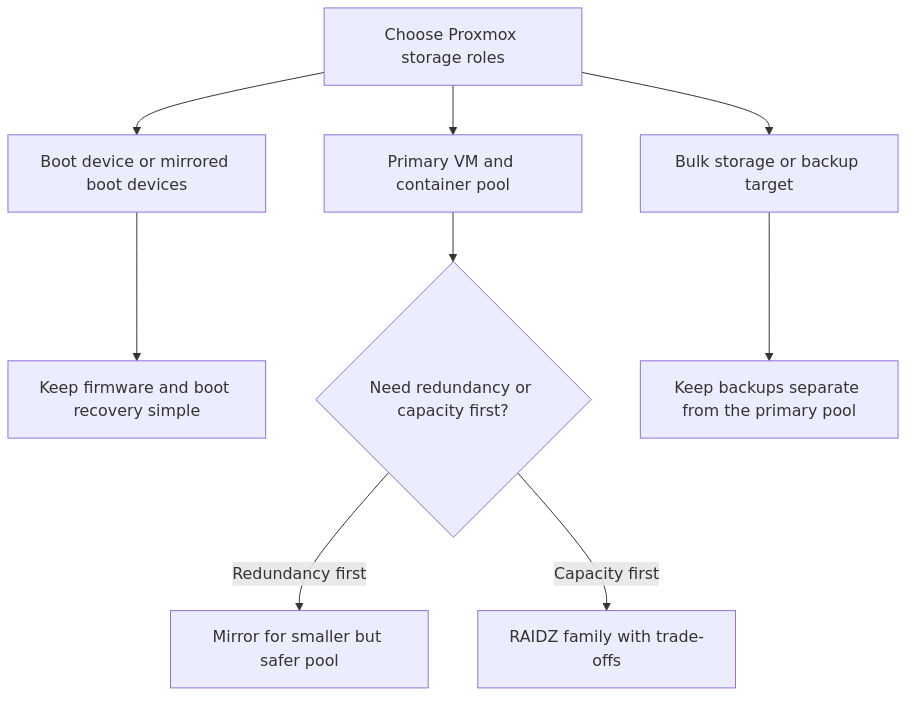
The First Decision That Actually Matters: Mirror or RAIDZ?
Here is my bias up front: for most small and medium homelab Proxmox boxes that host VM disks, I prefer mirrors.
That is not because RAIDZ is bad. It is because mirrors are simpler to reason about, simpler to rebuild, often better for random I/O, and usually a better fit for the kind of mixed workload a homelab creates.
I recommend a mirror when:
- you have 2 drives and want sane redundancy
- you care about VM responsiveness more than squeezing maximum usable capacity
- you want easier future expansion with another mirrored pair
- you are building around SSDs or a modest all-purpose box
I consider RAIDZ when:
- capacity efficiency matters more than raw VM disk behavior
- you have 4 or more disks and a clear reason not to mirror
- the box is pulling double duty as bulk storage, backups, or media archives
- you understand the rebuild and performance tradeoffs well enough to accept them
The mistake I made early on was treating ZFS like a storage math puzzle. It is not. It is a workload decision.
If the box mainly runs VMs and containers, mirrors usually win the argument. If the box is closer to a storage appliance that also happens to run a few workloads, RAIDZ becomes more defensible.
Before You Touch a Single Disk
These rules are boring. That is why they save people.
1. Give ZFS direct access to disks
Do not stack ZFS on top of a hardware RAID virtual disk. ZFS wants to see the real drives. It wants real error information, real flush behavior, and real control.
Use an HBA in IT mode or a controller that can present true JBOD. If your card is abstracting everything behind a fake RAID volume, stop there.
2. Know which disks you are using
Use stable disk IDs, not whatever /dev/sdb happens to mean this week.
ls -l /dev/disk/by-id/
lsblk -o NAME,SIZE,MODEL,SERIAL
If the disk list looks confusing now, it will look much worse after a failure.
3. Budget enough RAM
ZFS likes memory. The official Proxmox guidance starts at 8 GB and scales upward with capacity. In practice, I treat 16 GB as the floor for a serious Proxmox host and 32 GB or more as the point where the whole system stops feeling like it is negotiating with itself.
That does not mean you need to max RAM before installing. It means you should not pretend a disk-heavy ZFS host and a dozen VMs will be happy with toy hardware.
4. Decide whether ZFS is for root, VM storage, or both
Proxmox can install directly on ZFS. That is great when you want your root filesystem, snapshots, and replication-friendly storage layout integrated from the start.
It is also perfectly reasonable to install Proxmox one way and create a separate ZFS pool later for VM storage. I like separating the conversation this way because it keeps the root pool from becoming a junk drawer.
My Recommended Setup Path for Most Homelabs
If you are building a fresh Proxmox host with two decent SSDs or HDDs, my preferred pattern is simple:
- install Proxmox on a mirrored ZFS root pool if the hardware supports it cleanly
- keep VM and container storage on ZFS
- use compression
- keep the layout boring
- add backups outside the pool
Boring storage wins. The interesting part of your lab should be the workloads, not the recovery story.
Step 1: Identify and Wipe the Target Disks
In the GUI, go to Node -> Disks and inspect the candidates. In the shell, double-check with:
lsblk -o NAME,SIZE,TYPE,MODEL,SERIAL
ls -l /dev/disk/by-id/
If you are reusing disks, wipe old signatures first.
wipefs -a /dev/sdb
wipefs -a /dev/sdc
sgdisk --zap-all /dev/sdb
sgdisk --zap-all /dev/sdc
That command is destructive. Good. Half of storage mistakes come from trying to preserve mystery metadata that should have been erased in the first place.
Step 2: Create the Pool
If you are using the Proxmox installer for a ZFS root pool, choose the RAID layout during install and let Proxmox build rpool properly.
If you are creating a separate data pool after installation, you can do it in the GUI or the CLI. I use the CLI when I want absolute clarity about which devices are involved.
Example: mirrored pool for VM storage
zpool create -f \
  -o ashift=12 \
  -o autotrim=on \
  -O compression=lz4 \
  -O atime=off \
  tank mirror \
  /dev/disk/by-id/ata-disk1 \
  /dev/disk/by-id/ata-disk2
What those choices mean:
ashift=12is the safe default for modern 4K-sector drives and SSDsautotrim=onmakes sense for SSD-backed poolscompression=lz4is the default I would pick even if nobody askedatime=offavoids pointless metadata churn for this kind of host
If you are using spinning disks for a non-SSD pool, autotrim is irrelevant. Leave it out.
Add the pool to Proxmox storage
Once the pool exists, register it in Proxmox:
pvesm add zfspool tank-vm -pool tank -content images,rootdir -sparse 1
That makes it available for VM disks and container root filesystems.
If you prefer the GUI, go to Datacenter -> Storage -> Add -> ZFS and point it at the pool.
Step 3: Verify That the Pool Is Actually Sane
This is the part too many guides skip.
Run these commands and read them like you mean it:
zpool status -v
zpool list
zpool get ashift,autotrim
zfs list
zfs get compression,atime tank
A healthy new pool should show ONLINE. It should also show the disks you expected, the properties you intended to set, and no stray surprises from some earlier experiment.
If you installed Proxmox directly on ZFS, inspect the default datasets too:
zfs list -r rpool
cat /etc/pve/storage.cfg
The mistake I made once was assuming a clean installer result meant the storage layout was exactly what I had in mind. It was close. Close is not the same thing.
Step 4: Keep the Defaults Sane, Not Fancy
This is where the internet becomes a bad influence.
You do not need to spend your first weekend tuning every ZFS property from memory. You need a stable pool, predictable performance, and an understanding of which knobs are worth touching.
Settings I usually want early
Compression
Leave lz4 enabled.
zfs set compression=lz4 tank
For VM and container workloads, this is almost always worth it. It often reduces storage usage and can even improve performance by cutting physical writes.
atime
Turn off access time updates on storage that does not need them.
zfs set atime=off tank
That is a simple, low-drama improvement.
xattr for container-heavy datasets
If you are doing a lot with LXC and ACL-heavy workloads, the Proxmox tips page mentions a useful optimization:
zfs set xattr=sa dnodesize=auto tank/subvol-data
Do not apply that blindly to your root pool. This is exactly the kind of thing that becomes folklore faster than it becomes understanding.
Settings I do not rush to change
Deduplication
No.
More specifically: no, unless you have a very clear use case, a lot of RAM, and the operational appetite to support it. Homelab dedupe is one of those ideas that sounds clever right up until it starts billing you in consequences.
recordsize and volblocksize tuning everywhere
If you know the workload, tune the workload. If you do not, leave it alone.
A generic Proxmox host with mixed VMs, containers, backups, and utility services does not benefit from random property changes copied from a database tuning post written for somebody else's hardware in 2021.
Step 5: Build a Maintenance Routine Before You Need One
ZFS is reliable, not magical.
I want a maintenance loop that answers four questions:
- Is the pool healthy?
- Are the disks healthy?
- Are scrubs happening?
- Do I have backups outside this pool?
Check pool health
zpool status -v
zpool iostat -v 2
The first tells you whether the pool is healthy. The second tells you whether a device is acting weird under load.
Check SMART data
smartctl -a /dev/sdb
smartctl -a /dev/sdc
Use the real device names or by-id targets that map cleanly to physical disks. The point is to catch drive pain before ZFS has to become inspirational about it.
Run scrubs regularly
If you do not already have a scrub routine, create one.
zpool scrub tank
For most homelabs, monthly is a sensible starting point. Smaller boxes can get away with that cadence just fine.
Enable event notifications
Make sure zed is enabled so ZFS events do not stay private.
systemctl enable --now zfs-zed.service
systemctl status zfs-zed.service
Back up the workloads anyway
This is where I tell you, with affection, not to confuse snapshots with backups.
Snapshots help you recover from mistakes inside the pool. They do not help if the host dies, the pool dies, or your mistake replicates nicely across every snapshot you kept for convenience. Pair this article with Proxmox Backup Strategies: How to Never Lose a VM Again if you want the full plan.
Common Mistakes I See All the Time
1. Picking RAIDZ because the usable capacity looks nicer
Usable capacity is not the same thing as usable performance.
On VM-heavy hosts, people often regret optimizing for raw TB first.
2. Hiding disks behind hardware RAID
If your controller is lying to ZFS, ZFS cannot protect you properly.
That is the whole problem in one sentence.
3. Treating snapshots like backups
Still wrong. Still common.
4. Tuning before measuring
If you do not know what problem you are solving, you are not tuning. You are decorating.
5. Forgetting the rest of the Proxmox cluster story
Storage does not live alone.
Your pool design affects template cloning, monitoring, backup windows, and cluster behavior. That is why these follow-up reads matter:
- Proxmox Cluster Setup: The Complete Guide to High Availability for Your Homelab
- How to Create and Manage Proxmox Templates: A Beginner-Friendly Guide to Faster VM Deployments
- How to Monitor Proxmox with Grafana and Prometheus
Recommended Gear for a Sane Proxmox ZFS Build
I am not going to pretend hardware does not matter here. It does.
- HBA for direct disk access - if your current controller is fighting ZFS, start there: Shop LSI 9300-8i / IT-mode HBA options
- Reliable NVMe for mirrored Proxmox boot or fast VM storage - Samsung 990 EVO 2TB
- Enough RAM so ZFS and VMs stop arguing - Crucial 64GB DDR4 kit
None of that replaces planning. It just removes a few avoidable reasons to hate your storage.
FAQ
Should I install Proxmox directly on ZFS?
Yes, if you want a clean, integrated root-pool setup and your hardware is straightforward. It is a good fit for mirrored boot SSDs and for people who want ZFS from day one.
If your hardware is odd, your controller situation is messy, or you are still learning, a separate post-install ZFS pool for VM storage is also a perfectly valid way to start.
Is ashift=12 the right default?
For most modern 4K-native or 4K-emulated drives and SSDs, yes. It is the safest default recommendation for a homelab guide.
Could there be edge cases? Of course. Storage people can turn any edge case into a personality trait.
Should I use RAIDZ for VM storage?
You can. I just would not make it my first recommendation for a general-purpose homelab Proxmox host.
If the main workloads are VMs and containers, mirrors are usually easier to live with and easier to explain after something breaks.
How much RAM does ZFS need in Proxmox?
More than the tiniest boxes want to give it, less than the internet sometimes claims. Start with enough memory for both the host and the workloads, then monitor actual pressure before you start trimming ARC aggressively.
In practice, serious Proxmox + ZFS hosts feel much better once you are past the absolute minimums.
Do snapshots replace Proxmox backups?
No.
Snapshots are local recovery tools. Backups are your escape route when the host, pool, or your own judgment fails.
My Bottom Line
If you want the simplest recommendation I can give: build Proxmox on direct-access disks, choose a mirror unless you have a strong reason not to, enable compression, verify the pool with commands, and keep backups outside the box.
That setup is not glamorous. It is also the one I trust.
And trust, in storage, is the whole game.
What to Read Next
- Proxmox Storage Architecture: The Layout I Actually Recommend
- Proxmox Backup Strategies: How to Never Lose a VM Again
- Proxmox Cluster Setup: The Complete Guide to High Availability for Your Homelab
- How to Monitor Proxmox with Grafana and Prometheus
- Official Proxmox ZFS on Linux docs
- Official Proxmox ZFS Tips and Tricks
- OpenZFS documentation
transmission signupstatus: open channel
article_topic // Proxmox ZFS Setup Guide
Start building a smarter homelab.
Join readers learning Proxmox, networking, storage, backups, and self-hosting without breaking everything.
Enter your email address to receive the Homelab Addiction newsletter.
Beginner-friendly
No gatekeeping. Just clear, actionable guides.
1 useful email / week
Practical tips, real-world setups, and lessons learned.
Zero hype, practical only
What works, what breaks, and how to fix it.
Reply to any email with what you're building.
I read and reply to as many as I can.
— The Homelab Addiction Operator
support // the lab
Found this guide useful?
If it saved you time or a rebuild, you can support more practical homelab guides.