
FTC disclosure: This article contains affiliate links. If you purchase through these links, we may earn a commission at no additional cost to you.
Documentation basis: This rewrite is grounded in the restic backup documentation, the restic restore documentation, and the Backblaze 3-2-1 backup explainer. The goal is to separate live storage, local restores, and offsite copies clearly; no first-hand disaster-recovery story is being claimed here.
NAS & Storage
NAS Backup Strategies: Use the 3-2-1 Rule with Local Restores and Offsite Copies
Build a NAS backup plan by separating live storage, local restores, and offsite copies so recovery stays practical after deletion, disk failure, ransomware, or site loss.
HomelabAddiction Research Desk12 min read

The 3-2-1 rule matters for a NAS because most failures are not single-disk failures. Accidental deletion, ransomware, bad sync jobs, or site loss can all bypass the safety people think RAID already provides.
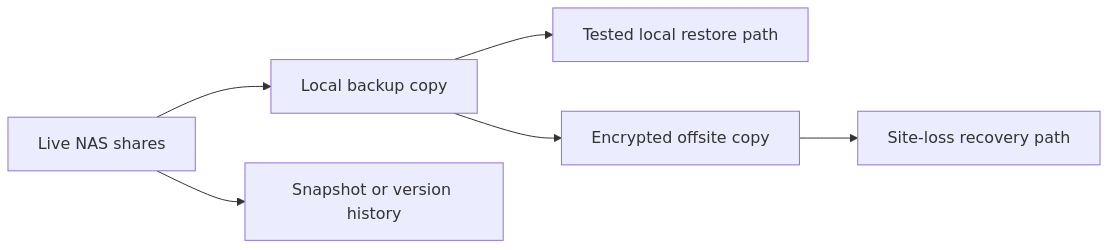
A workable backup design keeps three layers distinct: the live NAS data, one local copy that supports fast restores, and one offsite copy that survives the loss of the main chassis or the room it lives in. Once those layers are separated, restore testing becomes much easier to reason about.
This page helps a homelab operator decide what belongs in each layer and how to keep backup coverage realistic without turning backup administration into a second hobby.
- you delete the wrong folder
- ransomware encrypts the share
- a bad sync job overwrites good data with junk
- the NAS itself dies
- a firmware update goes sideways
- your house loses both the NAS and the USB drive sitting next to it
If you are still sorting out the rest of your storage design, it is worth reading ZFS vs Btrfs vs ext4 and TrueNAS Scale vs Core vs Unraid after this. The filesystem and NAS platform matter, but backup strategy matters more because it is what saves you when the platform itself has a bad day.
What the 3-2-1 rule means for a homelab NAS
The 3-2-1 backup rule sounds abstract until you translate it into a real setup.
Here is the plain-English version:
- 3 copies of your data
- the live copy on your NAS
- one local backup copy
- one off-site backup copy
- 2 different media types
- for example: NAS hard drives plus an external USB drive
- or NAS hard drives plus object storage in the cloud
- 1 off-site copy
- somewhere your house fire, theft, or power event cannot take out at the same time
For a normal homelab, that often becomes:
- Primary copy: your NAS shares
- Local backup copy: USB drive or second NAS on your network
- Off-site copy: encrypted cloud backup or a NAS at a friend or family member's house
That is manageable. You do not need a tape library and a full-time backup admin. You need layers.
RAID, snapshots, sync, and backup are not the same thing
This is the section I wish more backup articles handled clearly.
RAID
RAID protects availability. If one drive fails, your NAS may stay online.
That is like having two front tires instead of one. Helpful, yes. But if you drive into a lake, having two tires does not solve the lake problem.
Snapshots
Snapshots protect against accidental changes and make rollback fast.
If you use ZFS or Btrfs snapshots, you can often recover from accidental deletions or broken updates quickly. Great. But snapshots usually live on the same storage system. If the whole box dies, the snapshots die with it.
Sync
Sync copies changes from one place to another.
That sounds like backup, but it is not always backup. If you sync a corrupted file, you may simply replicate the corruption faster.
Backup
A real backup gives you versioned recovery from a separate location.
That means you can go back in time, restore specific files, and survive failure of the original system.
This is why I like combining a fast local copy with a versioned encrypted off-site backup. One helps you recover quickly. The other helps you recover completely.
A simple NAS backup strategy that works for most homelabs
This version balances effort, cost, and safety for many small homelabs.
- Primary NAS for live storage
- Local backup to a USB drive or second NAS using
rsync - Off-site encrypted backup using
restic - Cloud transfer plumbing with
rclonewhen needed - Scheduled jobs so you are not relying on memory
- Restore test once a month so you know the whole thing is real
You can absolutely swap tools. Synology Hyper Backup, TrueNAS replication tasks, and other vendor features can fit here too. But open tools are nice because they travel with you. If you change platforms later, your backup logic does not disappear.
Step 1: Decide what actually needs to be backed up
Why this matters
If you treat every byte on your NAS like it is equally valuable, your backup job gets bigger, slower, and more expensive than it needs to be.
Your family photos, important documents, password exports, app configs, and project files matter more than Linux ISOs you can download again in 20 minutes.
Start by classifying your data into three buckets:
- Critical and irreplaceable
- family photos
- personal documents
- exported configs
- small databases
- Important but replaceable
- media library metadata
- Docker volumes for services you can rebuild
- VM exports
- Disposable
- downloads
- cached media
- test data
If you are backing up over SMB or NFS and want a refresher on what lives where in your lab, NFS vs SMB vs iSCSI is worth bookmarking.
A quick inventory command on a Linux-based NAS mount can help you see what is taking space:
du -sh /srv/nas/* | sort -h
Or if your NAS shares are mounted under /mnt/nas:
du -sh /mnt/nas/* | sort -h
What could go wrong
If you skip this step, you may waste your off-site budget backing up huge media folders while the tiny folder with your paper scans gets no versioning at all.
Step 2: Create a local backup copy with rsync
Why this matters
Your local backup is the copy you hope to use most often.
If you accidentally delete a folder or break a share during cleanup, you do not want to wait on a cloud restore before dinner. A local copy is your short-path recovery.
For a simple example, assume:
- your live NAS data is mounted at
/mnt/nas-data - your backup disk is mounted at
/mnt/usb-backup
Run a dry run first:
rsync -avh --delete --dry-run /mnt/nas-data/ /mnt/usb-backup/
If the output looks correct, run the real job:
rsync -avh --delete /mnt/nas-data/ /mnt/usb-backup/
What these flags mean
-apreserves permissions, timestamps, and symlinks-vshows progress details-hmakes sizes readable--deleteremoves files from the backup that were removed from the source
Important caution on --delete
This is powerful and dangerous.
If the source path is wrong, --delete can make a mess fast. That is why the dry run matters. It is the difference between checking the address before you mail the package and throwing it into the wrong box.
A safer variant with dated snapshots
If you want a local backup that preserves older versions instead of mirroring changes exactly, use hard-linked snapshot directories:
BACKUP_ROOT=/mnt/usb-backup
TODAY=$(date +%F)
LAST=$(readlink -f "$BACKUP_ROOT/latest" 2>/dev/null || true)

mkdir -p "$BACKUP_ROOT/snapshots/$TODAY"

rsync -a --delete \
  ${LAST:+--link-dest="$LAST"} \
  /mnt/nas-data/ "$BACKUP_ROOT/snapshots/$TODAY/"

rm -f "$BACKUP_ROOT/latest"
ln -s "$BACKUP_ROOT/snapshots/$TODAY" "$BACKUP_ROOT/latest"
That gives you point-in-time local copies without duplicating unchanged files over and over.
Step 3: Add an encrypted off-site backup with restic
Why this matters
The off-site copy is what saves you from the worst-case scenario.
If your NAS and local backup disk both live in the same room, they can both disappear together. Fire, theft, surge damage, water, or one very determined toddler can ruin your day in a single event.
restic is a great fit here because it gives you:
- encryption by default
- deduplication
- versioned backups
- easy restores
- support for local, SFTP, and cloud/object storage backends
Example: initialize a restic repository on a mounted remote target
Set a password in a file first:
mkdir -p ~/.config/restic
chmod 700 ~/.config/restic
printf '%s\n' 'replace-this-with-a-long-random-passphrase' > ~/.config/restic/passphrase
chmod 600 ~/.config/restic/passphrase
If your backup target is mounted at /mnt/offsite-repo, initialize it like this:
export RESTIC_PASSWORD_FILE=$HOME/.config/restic/passphrase
restic -r /mnt/offsite-repo init
Then back up your critical NAS data:
export RESTIC_PASSWORD_FILE=$HOME/.config/restic/passphrase
restic -r /mnt/offsite-repo backup \
  /mnt/nas-data/documents \
  /mnt/nas-data/photos \
  /mnt/nas-data/configs
You can list snapshots with:
restic -r /mnt/offsite-repo snapshots
And check integrity with:
restic -r /mnt/offsite-repo check
Step 4: Use rclone when your off-site target is cloud object storage
Why this matters
A lot of homelab readers want an off-site copy but do not have a second location they control.
That is where cloud storage becomes practical. rclone helps you connect to storage providers, while restic handles the versioned encrypted backup set.
Configure a remote first:
rclone config
Follow the prompts to create a remote such as b2remote or s3remote.
Then point restic at it:
export RESTIC_PASSWORD_FILE=$HOME/.config/restic/passphrase
restic -r rclone:b2remote:homelab-restic backup /mnt/nas-data/documents /mnt/nas-data/photos
This is a nice combination because:
restichandles encryption and versionsrclonehandles the remote connection- you are not tied to one NAS vendor forever
What could go wrong
The biggest beginner mistake here is assuming cloud sync equals backup.
If you use a plain sync tool against a single bucket with no versioning, bad changes can still propagate. Use a backup tool that keeps snapshots and history.
Step 5: Automate the jobs so they happen even when life gets busy
Why this matters
The best backup strategy is the one that runs when you are tired, traveling, or distracted.
Manual backups feel fine right up until the month you forget them.
Here is a simple local rsync cron job that runs every night at 1:30 AM:
crontab -e
Add:
30 1 * * * rsync -a --delete /mnt/nas-data/ /mnt/usb-backup/ >> /var/log/nas-rsync-backup.log 2>&1
And here is a restic job that runs every night at 3:00 AM:
0 3 * * * export RESTIC_PASSWORD_FILE=$HOME/.config/restic/passphrase; restic -r rclone:b2remote:homelab-restic backup /mnt/nas-data/documents /mnt/nas-data/photos /mnt/nas-data/configs >> /var/log/restic-backup.log 2>&1
After a few successful runs, add retention so the repository does not grow forever:
export RESTIC_PASSWORD_FILE=$HOME/.config/restic/passphrase
restic -r rclone:b2remote:homelab-restic forget \
  --keep-daily 7 \
  --keep-weekly 4 \
  --keep-monthly 6 \
  --prune
That retention policy is a good beginner starting point because it gives you recent daily recovery points, weekly coverage for the last month, and monthly history beyond that.
Step 6: Test a restore before you call the strategy finished
Why this matters
Backups are like parachutes. The time to learn they were packed wrong is not the time you are already falling.
Test three restore scenarios:
- Single file restore
- Whole folder restore
- Bare-minimum disaster restore notes
Example: restore a single file with restic
List snapshots:
export RESTIC_PASSWORD_FILE=$HOME/.config/restic/passphrase
restic -r rclone:b2remote:homelab-restic snapshots
Restore to a test directory:
mkdir -p /tmp/restic-restore-test
export RESTIC_PASSWORD_FILE=$HOME/.config/restic/passphrase
restic -r rclone:b2remote:homelab-restic restore latest \
  --target /tmp/restic-restore-test
Then verify the expected files are there.
Example: test your local rsync copy
If you backed up to /mnt/usb-backup, try restoring a non-critical folder to a scratch location:
mkdir -p /tmp/local-restore-test
rsync -avh /mnt/usb-backup/documents/ /tmp/local-restore-test/
If both tests work, your strategy is no longer theoretical. That is the point where you can sleep better.
A practical low-overhead layout
If you want the shortest path to a decent setup, use this pattern:
- Live NAS: your main shares
- Local backup: external USB HDD updated nightly with
rsync - Off-site backup:
resticto Backblaze B2, S3-compatible storage, or another remote target - Monthly task: restore one file and one folder
That setup is not flashy. It is boring in the best possible way.
And boring is what you want from backups.
Common mistakes
1. Thinking RAID is the backup plan
RAID keeps services online through a drive failure. It does not protect against deletion, ransomware, corruption, or NAS failure.
2. Keeping every copy in the same room
A NAS plus a USB drive sitting on top of it is better than nothing, but it does not satisfy the off-site part of 3-2-1.
3. Backing up everything with no priorities
If your off-site budget is limited, start with irreplaceable data first.
4. Never testing restores
This is the most common failure. Jobs run for months, nobody checks them, and the first restore is during an emergency.
5. Confusing snapshots with backups
Snapshots are excellent rollback tools. They are not a substitute for a separate backup destination.
6. Using --delete carelessly
Always dry-run a new rsync job before trusting it.
Recommended gear for this kind of setup
If you are building or improving your NAS backup workflow, these are the kinds of upgrades that actually help:
- WD Red Plus NAS hard drives for the main NAS or a secondary local backup target
- Samsung T7 Shield portable SSD for quick local backup copies and portable restore testing
- APC Back-UPS 1500VA to avoid corruption and interrupted backup jobs during power loss
Those suggestions matter because they support the backup strategy itself, not because they look nice in a rack photo.
FAQ
Is a second NAS better than a USB drive for local backup?
Usually yes, but only if you will actually maintain it. A second NAS gives you more flexibility and can run scheduled replication, but a USB drive is cheaper and much easier to get working. A simple backup that exists is better than a perfect design that never leaves your notes app.
Are snapshots enough for NAS backups?
No. Snapshots are great for rollback and accidental deletion recovery, but they usually live on the same storage system. You still need a separate backup destination.
What is the best off-site backup option for a homelab?
For most people, encrypted cloud object storage is the easiest off-site option to maintain. If you have a second trusted location and decent bandwidth, another NAS can work too.
How often should I back up my NAS?
Critical data should be backed up at least daily. If your NAS holds active work files or important family data, nightly local backups plus nightly or daily off-site backups are a solid default.
Should I back up my entire media library off-site?
Not always. If the media is replaceable and very large, you may decide to keep only a local backup while reserving off-site space for irreplaceable data like documents, photos, and configs.
What to learn next
Once your backup plan is running, the next useful skills are:
- tightening the storage layer itself with Proxmox Storage Architecture
- understanding protocol tradeoffs in NFS vs SMB vs iSCSI
- choosing the right filesystem in ZFS vs Btrfs vs ext4
- reviewing your wider safety net in Homelab Backups and Monitoring
If you take one thing away from this article, let it be this: a backup strategy does not need to be impressive. It needs to be repeatable. Three copies, two media types, one off-site copy, and regular restore tests will protect your homelab far better than wishful thinking ever will.
Official documentation
transmission signupstatus: open channel
article_topic // NAS Backup Strategies
Start building a smarter homelab.
Join readers learning Proxmox, networking, storage, backups, and self-hosting without breaking everything.
Enter your email address to receive the Homelab Addiction newsletter.
Beginner-friendly
No gatekeeping. Just clear, actionable guides.
1 useful email / week
Practical tips, real-world setups, and lessons learned.
Zero hype, practical only
What works, what breaks, and how to fix it.
Reply to any email with what you're building.
I read and reply to as many as I can.
— The Homelab Addiction Operator
support // the lab
Found this guide useful?
If it saved you time or a rebuild, you can support more practical homelab guides.