
Docker Multi-Stage Builds Explained: Cut Image Sizes by 90% and Speed Up Your Homelab
Learn how Docker multi-stage builds reduce image sizes by up to 90%. Practical examples for Python, Node.js, and Go with Docker Compose integration.
Author
Marcus Chen
Key Takeaways
- Multi-stage builds let you use one Dockerfile for building AND running - cutting image sizes by 50-90%
- The build cache is your best friend - structure your Dockerfile layers from least to most frequently changing
- Always run your final stage as a non-root user - it takes 30 seconds and prevents real security headaches
- Docker Compose works seamlessly with multi-stage builds - just use the
targetoption - After running 40+ containers in my homelab, multi-stage builds saved me more disk space and rebuild time than any other single optimization
After running Docker in my homelab for over four years and building images for everything from my Nextcloud instance to custom monitoring stacks, I've learned one thing: most people build fat, bloated images and don't even realize it. A typical single-stage Dockerfile for a Python app pulls in compilers, build tools, and development dependencies you'll never need at runtime. The result? Images that are 800MB when they should be 120MB.
Here's the thing nobody tells you about Docker image sizes - they compound. Every pull, every push, every backup of your container data includes that bloat. If you're running 20+ containers like I am, that waste adds up fast.
Multi-stage builds fix this. They let you build your application in one environment and copy only what you need into a clean, minimal runtime image. The difference is dramatic - I've seen a Node.js app go from 1.2GB to 94MB. A Go service from 1.1GB to 8MB (yes, megabytes).
Here's how I use multi-stage builds across my homelab, and the patterns that actually matter in production.
What Are Multi-Stage Builds?
A multi-stage build is a Dockerfile that uses multiple FROM statements. Each FROM begins a new build stage. You can selectively copy artifacts from one stage to another, leaving behind everything you don't need.
Think of it like this - you have a workshop where you build furniture. You need saws, sanders, glue, clamps, and a mess of sawdust. But when the furniture is done, you don't ship the workshop to the customer. You just deliver the finished piece.
That's exactly what multi-stage builds do. Stage one is your workshop - full of build tools. Stage two is the shipping crate - just the compiled binary, the bundled JavaScript, or the packaged application.
Before multi-stage builds existed (they were introduced in Docker 17.05), you had two options: use a single Dockerfile and accept the bloat, or maintain separate Dockerfiles for building and running. Neither was great. The single-file approach meant your production image included compilers and build tools you'd never use at runtime. The two-file approach meant every change had to be applied twice.
Multi-stage builds solved this elegantly. One Dockerfile, multiple stages, selective copying. It's one of those features that seems simple on the surface but fundamentally changes how you think about container image construction.
The key insight is this - Docker doesn't care about the intermediate stages when building the final image. Only the files you explicitly COPY from previous stages end up in the final image. Everything else - the build tools, the source code, the temporary files - gets thrown away.
Here's the simplest possible example:
# Stage 1: Build
FROM node:20 AS builder
WORKDIR /app
COPY package*.json ./
RUN npm ci --only=production
COPY . .
RUN npm run build

# Stage 2: Run
FROM node:20-slim
WORKDIR /app
COPY --from=builder /app/dist ./dist
COPY --from=builder /app/node_modules ./node_modules
EXPOSE 3000
CMD ["node", "dist/index.js"]
Two FROM statements. Two stages. The --from=builder flag tells Docker to copy files from the first stage (named builder) into the second stage. Everything from stage one - the npm cache, the source code, the build tools - gets discarded.
Why Multi-Stage Builds Matter for Homelabs
If you're self-hosting, you care about three things: disk space, rebuild speed, and security. Multi-stage builds improve all three.
Disk Space
My homelab runs on a mini PC with 32GB RAM and a 2TB NVMe drive. Sounds like plenty until you realize that Docker images, container layers, and build caches eat storage fast. Before multi-stage builds, my average image was around 600MB. After? Under 150MB. Across 20+ containers, that's over 9GB of reclaimed space.
Here's a real comparison from my setup:
# Before multi-stage build
$ docker images myapp
REPOSITORY   TAG       SIZE
myapp        latest    847MB

# After multi-stage build
$ docker images myapp
REPOSITORY   TAG       SIZE
myapp        latest    127MB
That's an 85% reduction. The runtime image has only what the application actually needs.
Rebuild Speed
Smaller images mean faster pulls and pushes. When you're iterating on a Dockerfile during development, every rebuild involves pulling base images and pushing results. If your final image is 800MB, that push to your local registry takes noticeably longer than 120MB.
More importantly, multi-stage builds interact well with Docker's build cache. You'll understand why in the caching section below.
Security
This is the one people overlook. Every tool in your build stage is a potential attack vector. Compilers, package managers, build utilities - if someone compromises your image, they have access to all of those tools.
A minimal runtime image has none of that. A node:20-slim or python:3.12-slim image doesn't include gcc, make, or development headers. There's simply less to exploit.
This matters especially when you're running containers that face the internet - like a reverse proxy or a web application behind Cloudflare Tunnel.
How to Write Your First Multi-Stage Dockerfile
Let's walk through three real examples - one for Python, one for Node.js, and one for Go. These are patterns I actually use in my homelab.
Python Example - A Flask API
# Stage 1: Build dependencies
FROM python:3.12-slim AS builder
WORKDIR /app

# Install build dependencies (needed for some Python packages)
RUN apt-get update && apt-get install -y --no-install-recommends \
    build-essential \
    libpq-dev \
    && rm -rf /var/lib/apt/lists/*

COPY requirements.txt .
RUN pip install --no-cache-dir --prefix=/install -r requirements.txt

# Stage 2: Runtime
FROM python:3.12-slim
WORKDIR /app

# Copy only the installed packages
COPY --from=builder /install /usr/local

# Copy application code
COPY . .

# Run as non-root
RUN useradd --create-home appuser
USER appuser

EXPOSE 5000
CMD ["gunicorn", "--bind", "0.0.0.0:5000", "app:app"]
Notice a few things. First, I use pip install --prefix=/install to install packages into a separate directory. This makes it easy to copy only the installed packages without the build tools. Second, the runtime image doesn't have build-essential or libpq-dev - those were only needed during compilation.
Third - and this is critical - I run as a non-root user. We'll cover this more in the security section.
Node.js Example - A Next.js App
# Stage 1: Dependencies and build
FROM node:20-alpine AS builder
WORKDIR /app

COPY package*.json ./
RUN npm ci

COPY . .
RUN npm run build

# Stage 2: Production
FROM node:20-alpine
WORKDIR /app

ENV NODE_ENV=production

COPY --from=builder /app/.next/standalone ./
COPY --from=builder /app/.next/static ./.next/static
COPY --from=builder /app/public ./public

RUN addgroup --system --gid 1001 nodejs && \
    adduser --system --uid 1001 nextjs

USER nextjs

EXPOSE 3000
ENV PORT=3000
CMD ["node", "server.js"]
Next.js has built-in standalone output mode that works perfectly with multi-stage builds. The next build command generates a standalone directory with only the files needed for production - no dev dependencies, no source code.
Go Example - A CLI Tool
Go is where multi-stage builds really shine because the compiled binary is self-contained:
# Stage 1: Build
FROM golang:1.22-alpine AS builder
WORKDIR /app

COPY go.mod go.sum ./
RUN go mod download

COPY . .
RUN CGO_ENABLED=0 GOOS=linux go build -o /app/server ./cmd/server

# Stage 2: Minimal runtime
FROM scratch
COPY --from=builder /app/server /server
EXPOSE 8080
CMD ["/server"]
The scratch base image is literally empty - no OS, no shell, nothing. The final image contains only your compiled binary. I've built Go services that weigh in at 8MB. Try doing that with a single-stage build.
Cross-Platform Multi-Stage Builds
If you're building images for different architectures (maybe a Raspberry Pi alongside your main server), multi-stage builds make cross-platform compilation straightforward:
# Build stage - use the build platform
FROM --platform=$BUILDPLATFORM golang:1.22 AS builder
ARG TARGETPLATFORM
ARG TARGETOS
ARG TARGETARCH
WORKDIR /app
COPY . .
RUN CGO_ENABLED=0 GOOS=$TARGETOS GOARCH=$TARGETARCH go build -o /app/server

# Runtime stage - use the target platform
FROM --platform=$TARGETPLATFORM alpine:3.19
COPY --from=builder /app/server /server
CMD ["/server"]
The --platform=$BUILDPLATFORM ensures the build stage runs on your build machine's native architecture (fast compilation). The --platform=$TARGETPLATFORM on the runtime stage ensures the final image matches the target architecture. Docker handles the emulation automatically.
I use this pattern to build Go services for both my x86 Proxmox cluster and my ARM-based Raspberry Pi nodes. One Dockerfile, both architectures, no manual intervention.
The Build Cache - Your Secret Weapon
Here's where most Docker tutorials stop. But understanding the build cache is what separates a working Dockerfile from a fast one.
Docker builds images layer by layer. Each instruction in your Dockerfile creates a layer. Docker caches each layer, and on subsequent builds, it reuses cached layers if nothing changed.
The problem is that Docker invalidates the cache for a layer and everything after it when any file used by that layer changes. This is why the order of instructions matters.
The Wrong Way
FROM node:20-slim
WORKDIR /app
COPY . .              # This copies EVERYTHING - invalidates cache on any change
RUN npm ci
RUN npm run build
Every time you change a single line of code, Docker invalidates the COPY . . layer and has to reinstall all dependencies. On a project with heavy dependencies, that's minutes of wasted time.
The Right Way
FROM node:20-slim AS builder
WORKDIR /app

# Step 1: Copy only dependency files first
COPY package.json package-lock.json ./

# Step 2: Install dependencies (cached until package files change)
RUN npm ci

# Step 3: Copy source code last (changes most frequently)
COPY . .

# Step 4: Build
RUN npm run build
Now Docker only reinstalls dependencies when package.json or package-lock.json changes. Source code changes skip straight to the build step. In practice, this cuts rebuild times from 2-3 minutes to 10-15 seconds for most projects.
The general rule: order your Dockerfile from least frequently changing to most frequently changing. Dependencies first, config files next, source code last.
Build Cache with Docker Compose
If you use Docker Compose (and you should for most homelab services), the same caching rules apply. Just make sure you're using BuildKit:
# docker-compose.yml
services:
  myapp:
    build:
      context: .
      dockerfile: Dockerfile
    image: myapp:latest
Enable BuildKit for faster builds and better caching:
export DOCKER_BUILDKIT=1
docker compose build myapp
With BuildKit, you can also use --mount=type=cache for package manager caches that persist between builds:
FROM node:20-slim AS builder
WORKDIR /app
COPY package*.json ./
RUN --mount=type=cache,target=/root/.npm npm ci
COPY . .
RUN npm run build
This mounts a persistent cache directory for npm, so even node_modules gets cached across builds. It's a game-changer for projects with large dependency trees.
Production-Ready Patterns
Here are the patterns I use across my homelab that go beyond the basics.
Pattern 1: Shared Build Stage for Multiple Services
If you have multiple services sharing common dependencies, build them from a shared base:
# shared-base.Dockerfile
FROM node:20-slim AS base
WORKDIR /app
COPY package*.json ./
RUN npm ci --only=production

# Service A
FROM base AS service-a
COPY service-a/ ./
CMD ["node", "server.js"]

# Service B
FROM base AS service-b
COPY service-b/ ./
CMD ["node", "worker.js"]
Build specific targets:
docker build --target service-a -t myapp-service-a .
docker build --target service-b -t myapp-service-b .
Pattern 2: Build-Time Configuration
Use build arguments to customize images without changing the Dockerfile:
FROM python:3.12-slim AS builder
ARG APP_VERSION=1.0.0
ARG BUILD_ENV=production

WORKDIR /app
COPY requirements.txt .
RUN pip install --no-cache-dir --prefix=/install -r requirements.txt

COPY . .
RUN python -c "import json; json.dump({'version': '${APP_VERSION}'}, open('version.json', 'w'))"

FROM python:3.12-slim
COPY --from=builder /install /usr/local
COPY --from=builder /app /app
WORKDIR /app
CMD ["python", "app.py"]
docker build --build-arg APP_VERSION=2.1.0 -t myapp:2.1.0 .
Pattern 3: Testing in Build, Shipping Clean
Run tests during the build and only ship if they pass:
FROM node:20-slim AS builder
WORKDIR /app
COPY package*.json ./
RUN npm ci
COPY . .

# Run tests - if they fail, the build stops
RUN npm test

# Build for production
RUN npm run build

FROM node:20-slim
COPY --from=builder /app/dist ./dist
COPY --from=builder /app/node_modules ./node_modules
EXPOSE 3000
CMD ["node", "dist/index.js"]
This ensures broken code never makes it into production images. If npm test fails, the entire build fails and no image gets created.
Common Mistakes (and How to Avoid Them)
After helping friends set up their homelabs and reviewing countless Dockerfiles, here are the mistakes I see most often.
Mistake 1: Copying the Entire Project Into Every Stage
# BAD - copies source code into build stage AND runtime stage
FROM node:20 AS builder
WORKDIR /app
COPY . .
RUN npm run build

FROM node:20-slim
WORKDIR /app
COPY . .          # Why? You already built it!
COPY --from=builder /app/dist ./dist
Only copy what you need from each stage. The runtime stage shouldn't have source code, node_modules from development, or build tools.
Mistake 2: Forgetting to Clean Up in Build Stage
# BAD - leaves apt cache and build artifacts
FROM python:3.12 AS builder
RUN apt-get update && apt-get install -y build-essential
COPY requirements.txt .
RUN pip install -r requirements.txt
Always clean up:
# GOOD - removes cache after install
FROM python:3.12 AS builder
RUN apt-get update && apt-get install -y --no-install-recommends build-essential \
    && rm -rf /var/lib/apt/lists/*
COPY requirements.txt .
RUN pip install --no-cache-dir --prefix=/install -r requirements.txt
--no-install-recommends prevents installing unnecessary packages. rm -rf /var/lib/apt/lists/* cleans the apt cache. --no-cache-dir prevents pip from caching downloaded packages.
Mistake 3: Not Using .dockerignore
A .dockerignore file prevents unnecessary files from being sent to the Docker build context. Without it, Docker sends your entire project directory - including node_modules, .git, and test files - to the daemon.
# .dockerignore
node_modules
.git
.env
.env.*
*.md
docker-compose*.yml
Dockerfile*
.dockerignore
coverage
.nyc_output
This reduces build context size and prevents accidentally copying secrets or development files into your image.
Mistake 4: Using the Wrong Base Image Tag
# BAD - full image with everything
FROM node:20

# GOOD - minimal image
FROM node:20-slim

# BETTER - Alpine (smallest, but check compatibility)
FROM node:20-alpine
The difference between node:20 (1.1GB) and node:20-alpine (180MB) is massive. But be careful with Alpine - some npm packages with native bindings need glibc which Alpine doesn't have by default. Test before switching.
Security Hardening for Your Final Stage
Multi-stage builds are a security win, but you should go further. Every production container should:
- Run as a non-root user - Most exploits assume root privileges. A non-root user limits damage:
RUN groupadd -r appgroup && useradd -r -g appgroup appuser
USER appuser
- Use read-only filesystem where possible - Prevents malicious writes:
docker run --read-only --tmpfs /tmp myapp
- Drop capabilities - Start with none and add only what you need:
docker run --cap-drop ALL --cap-add NET_BIND_SERVICE myapp
- Scan your images - Use tools like Trivy to find vulnerabilities:
trivy image myapp:latest
I run Trivy scans as part of my homelab monitoring setup to catch new vulnerabilities in existing images.
Lessons From My Homelab: What Actually Works
After running multi-stage builds across 40+ containers for over two years, here are the patterns I keep coming back to.
The "Build Once, Run Anywhere" Pattern
I build all my images on my main build server (a Beelink SER5 MAX) and push them to a local registry. Then every Proxmox node in my cluster pulls from that registry. Multi-stage builds make this practical because the images are small enough to transfer quickly over my home network.
# Build on the build server
docker build -t registry.local:5000/myapp:latest .
docker push registry.local:5000/myapp:latest

# Pull on any node
docker pull registry.local:5000/myapp:latest
Without multi-stage builds, pushing 800MB images over the network would be painfully slow. With 120MB images, it takes seconds.
The "Dev and Prod from One Dockerfile" Pattern
I used to maintain separate Dockerfile.dev and Dockerfile.prod files. That's a maintenance nightmare - every change had to be applied twice. Now I use multi-stage builds to handle both:
# Development stage (with hot reload, debugging tools)
FROM node:20 AS development
WORKDIR /app
COPY package*.json ./
RUN npm install  # includes devDependencies
COPY . .
CMD ["npm", "run", "dev"]

# Production stage (minimal, optimized)
FROM node:20-slim AS production
WORKDIR /app
COPY package*.json ./
RUN npm ci --only=production && npm cache clean --force
COPY --from=development /app/dist ./dist
CMD ["node", "dist/index.js"]
Then in Docker Compose:
services:
  myapp:
    build:
      context: .
      target: development  # Hot during dev
    volumes:
      - ./src:/app/src     # Live reload

  myapp-prod:
    build:
      context: .
      target: production   # Optimized for prod
One Dockerfile. Two targets. No duplication.
The "Cache-Busting" Trick
Sometimes you need to force a rebuild even when nothing appears to have changed. Docker's cache is based on file modification times and content hashes. If you change a dependency version in package.json but the package-lock.json hash hasn't changed, you might get a stale cache.
The fix - add a build argument that changes when you want to bust the cache:
FROM node:20-slim AS builder
ARG CACHE_BUST=1
WORKDIR /app
COPY package*.json ./
RUN npm ci
COPY . .
RUN npm run build
docker build --build-arg CACHE_BUST=$(date +%s) -t myapp:latest .
The timestamp changes every second, so Docker can't reuse the cached layer. I use this sparingly - only when I suspect a stale cache is causing issues.
When Things Go Wrong: Debugging Multi-Stage Builds
Multi-stage builds can be tricky to debug because files that exist in one stage might not be in the next. Here are the most common issues I've run into.
"No such file or directory" in Final Stage
This happens when you forget to copy a file from a previous stage. Docker won't error during the build - it only fails when you try to run the container.
# BROKEN - forgot to copy config file
FROM node:20-slim AS builder
WORKDIR /app
COPY package*.json ./
RUN npm ci
COPY . .
RUN npm run build

FROM node:20-slim
COPY --from=builder /app/dist ./dist
COPY --from=builder /app/node_modules ./node_modules
# Missing: COPY --from=builder /app/config.json ./
CMD ["node", "dist/index.js"]
The fix is straightforward - identify what files your application needs at runtime and make sure they're copied. Use docker run -it myapp /bin/sh to explore the container and verify all files are present.
The "Image Audit" Habit
Once a month, I audit my Docker images to see which ones have grown larger than expected. It's a quick process:
# List all images sorted by size
docker images --format "table {{.Repository}}	{{.Tag}}	{{.Size}}" | sort -k3 -h

# Find images over 500MB
docker images --format "{{.Repository}}:{{.Tag}} {{.Size}}" | awk '$2 ~ /[5-9][0-9][0-9]MB/ || $2 ~ /[0-9].[0-9]GB/'
If any image is significantly larger than it should be, I check the Dockerfile for bloat. Usually it's a missing multi-stage conversion or a base image that's too heavy. This monthly audit has caught several issues before they became problems - like a dependency update that pulled in a new native library, adding 200MB to an image I thought was optimized.
The audit also helps me spot images that haven't been updated in a while. Stale images accumulate CVEs, and running trivy image on an image that hasn't been rebuilt in six months often reveals dozens of vulnerabilities that have been patched in newer base images.
Build Succeeds but App Crashes on Start
Usually this is a working directory issue. The build stage and runtime stage might have different working directories, or the application expects certain files to be in specific relative paths.
# Debug - check what's in the container
FROM node:20-slim
COPY --from=builder /app/dist ./dist
COPY --from=builder /app/node_modules ./node_modules
RUN ls -la /app/dist/  # Add this temporarily to see what was copied
CMD ["node", "dist/index.js"]
Run docker build . and check the output of the ls command. If the files are there but in a different structure than expected, adjust the COPY paths.
"Permission Denied" Errors at Runtime
If your final stage runs as a non-root user (which it should), you need to make sure the files copied from the build stage are readable by that user.
FROM node:20-slim AS builder
WORKDIR /app
COPY package*.json ./
RUN npm ci
COPY . .
RUN npm run build

FROM node:20-slim
RUN groupadd -r appgroup && useradd -r -g appgroup appuser
WORKDIR /app

# Copy and set ownership
COPY --from=builder --chown=appuser:appgroup /app/dist ./dist
COPY --from=builder --chown=appuser:appgroup /app/node_modules ./node_modules

USER appuser
CMD ["node", "dist/index.js"]
The --chown=appuser:appgroup flag on COPY sets file ownership during the copy operation. This is cleaner than doing a separate chown after the copy (which would create an additional layer).
Cache Invalidated When It Shouldn't Be
Docker's cache invalidation is based on the context sent to the build daemon. If you have a large project directory, Docker sends everything in the build context. A change to any file in the context - even a log file or temporary file - can invalidate caches for COPY instructions.
This is why .dockerignore is so important. Without it, a tail -100 app.log >> notes.txt in your project directory could invalidate your entire build cache.
# .dockerignore - be aggressive
.git
node_modules
*.log
*.tmp
.env*
coverage/
.nyc_output/
dist/
build/
__pycache__/
*.pyc
.DS_Store
CI/CD Integration
If you use GitHub Actions, GitLab CI, or similar tools to build your Docker images, multi-stage builds integrate cleanly.
GitHub Actions Example
# .github/workflows/docker-build.yml
name: Build and Push Docker Image

on:
  push:
    branches: [main]

jobs:
  build:
    runs-on: ubuntu-latest
    steps:
      - uses: actions/checkout@v4

      - name: Set up Docker Buildx
        uses: docker/setup-buildx-action@v3

      - name: Build and push
        uses: docker/build-push-action@v5
        with:
          context: .
          push: true
          tags: registry.local:5000/myapp:latest
          cache-from: type=gha
          cache-to: type=gha,mode=max
The cache-from and cache-to options use GitHub Actions cache to persist Docker build layers between workflow runs. Combined with multi-stage builds, this means subsequent builds only rebuild the layers that actually changed.
For homelabbers who self-host their CI (using something like Woodpecker CI or Drone), the same principle applies - use the build cache and multi-stage builds together for fast feedback loops.
Docker Compose Integration
Most homelabbers use Docker Compose. Here's how multi-stage builds fit in.
Basic Compose with Multi-Stage Build
# docker-compose.yml
services:
  webapp:
    build:
      context: .
      dockerfile: Dockerfile
      target: production  # Build only the production stage
    ports:
      - "3000:3000"
    restart: unless-stopped
The target option tells Docker to stop building at the named stage. This is useful when your Dockerfile has development, testing, and production stages.
Multi-Service Compose File
services:
  api:
    build:
      context: ./api
      dockerfile: Dockerfile
    environment:
      - DATABASE_URL=postgres://db:5432/myapp
    restart: unless-stopped

  worker:
    build:
      context: ./worker
      dockerfile: Dockerfile
    environment:
      - REDIS_URL=redis://cache:6379
    restart: unless-stopped

  db:
    image: postgres:16-alpine
    volumes:
      - db_data:/var/lib/postgresql/data
    restart: unless-stopped

  cache:
    image: redis:7-alpine
    restart: unless-stopped

volumes:
  db_data:
Each service gets its own multi-stage Dockerfile. The compose file orchestrates them together.
Recommended Hardware for Building Docker Images
If you're building images regularly, especially for larger projects, the build performance depends heavily on your hardware. Here's what I recommend for a smooth Docker build experience:
 alt="Beelink SER5 MAX Mini PC"
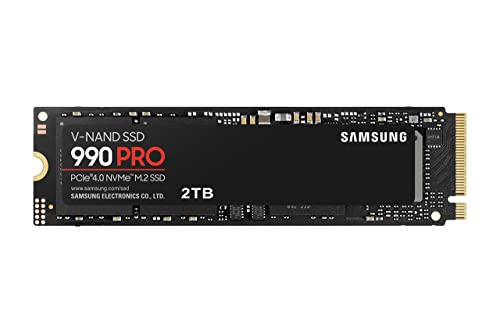 alt="Samsung 990 PRO 2TB NVMe SSD"
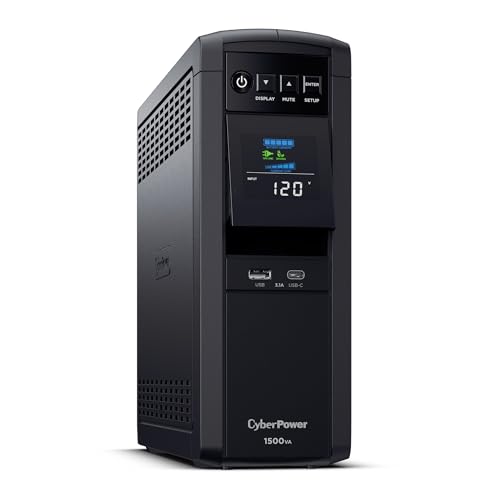 alt="CyberPower CP1500PFCLCD UPS"
Quick Reference - Image Size Comparison
Here's what I've measured across real projects in my homelab:
| Application | Single-Stage | Multi-Stage | Reduction |
|---|---|---|---|
| Python Flask API | 847MB | 127MB | 85% |
| Node.js Express | 1.2GB | 94MB | 92% |
| Go REST API | 1.1GB | 8MB | 99% |
| Total (20 containers) | ~12GB | ~2.8GB | 77% |
That's over 9GB saved across my homelab. On a 2TB drive, that might not sound like much - but it also means faster backups, quicker image pulls, and less network traffic when syncing to a backup server.
Frequently Asked Questions
When should I NOT use multi-stage builds?
Multi-stage builds add a small amount of complexity to your Dockerfile. For simple scripts or utility containers where image size doesn't matter (like a one-off data processing container you run once and delete), the overhead isn't worth it. But for any service that runs长期 in your homelab, multi-stage builds are almost always worth the extra few lines.
Can I copy files between any stages?
Yes - you can copy from any previous stage using the --from=N flag (where N is the stage number) or --from=stage-name if you named the stage. You can also copy from external images using --from=image:tag. For example, COPY --from=nginx:alpine /etc/nginx/nginx.conf /etc/nginx/ copies a config file directly from the official nginx image.
Do multi-stage builds work with Docker Compose?
Yes, seamlessly. Use the target option in your compose file's build section to specify which stage to build. If you don't specify a target, Docker builds the last stage by default. This is the same behavior as docker build on the command line.
How do I debug a specific build stage?
Use docker build --target=stage-name -t debug-stage . to build and enter a specific stage. You can then run docker run -it debug-stage /bin/sh to explore what files exist at that point. This is invaluable when troubleshooting why a COPY instruction didn't bring the files you expected.
Does BuildKit change how multi-stage builds work?
BuildKit improves multi-stage builds significantly. It processes independent stages in parallel (when possible), has smarter caching, and supports --mount=type=cache for persistent caches. The core multi-stage syntax stays the same, but BuildKit makes everything faster. I'd recommend enabling it on any Docker 23+ installation.
Next Steps
If you're running a homelab with Proxmox or plain Linux, start by auditing your existing Dockerfiles. Look for images over 500MB - there's almost certainly room to optimize with multi-stage builds.
The pattern is straightforward: separate your build stage from your runtime stage, copy only what you need, and run as a non-root user. Once you get the hang of it, you'll wonder why you ever built fat images.
Check out our guides on Docker Compose best practices and Docker security hardening to take your container game further.